
I’ve converted hundreds of Word files to PDF over the years — CVs, client reports, contracts — and the file that goes wrong is never the plain one. It’s always the document with a custom font, a table, or a photo someone added at 11pm before a deadline. One click on “Save As,” and suddenly the spacing has shifted, a font has swapped itself for Calibri, and the whole thing looks like it was opened on a different computer. In a way, it was.
So here’s exactly how to save a Word document as a PDF on Windows, Mac, Google Docs, and your phone — plus the real reasons formatting breaks, and what to do about it before you hit send.
The Fast Way (Works for Most Documents)
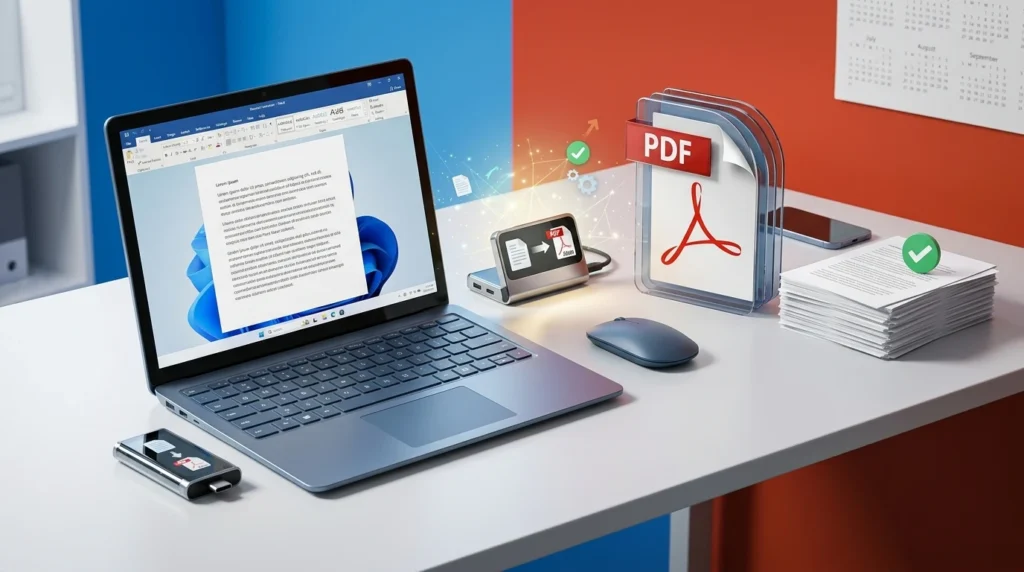
If your document is mostly text with simple formatting, this takes ten seconds:
- Open the file in Microsoft Word
- Click File → Save As
- Choose PDF from the file type dropdown
- Click Save
That covers a simple file. For anything with images, columns, custom fonts, or a layout you actually care about, keep reading — that’s where the quick Save As button starts cutting corners.
Save a Word Document as a PDF on Windows
Export instead of Save As. This is the version I use for anything that needs to look right — resumes, proposals, anything going to a client.
- Go to File → Export → Create PDF/XPS
- Choose Standard (publishing online and printing), not “Minimum size” — Minimum size actively recompresses your images to shrink the file, which is where a lot of the blur comes from
- Click Publish
Before you do, click Options in that dialog. Most people skip it, but it’s where you turn on “Document structure tags for accessibility” and “Create bookmarks using Headings” — two settings that make no visual difference on your screen but decide whether the PDF is screen-reader-friendly and properly tagged if anyone opens it in Acrobat later.
Print to PDF. Press Ctrl + P, choose Microsoft Print to PDF as the printer, then Print. It bypasses Word’s export engine entirely, which occasionally fixes formatting bugs that Export can’t.
Save a Word Document as a PDF on Mac
Mac handles font substitution a little more gracefully than Windows in my experience, but the process is nearly identical:
- File → Save As, then change the format to PDF, or
- File → Print → PDF → Save as PDF
Either way, open the result before you send it — macOS occasionally renders drop shadows or table borders slightly differently than Word displayed them.
No Microsoft Word? Use Google Docs or LibreOffice for Free
You don’t need to own Word to do this.
Google Docs: upload the .docx file, open it, then go to File → Download → PDF Document (.pdf). Google converts it on its own servers, so double-check tables and headers — this is where Docs most commonly shifts things.
LibreOffice (free, open-source, no subscription — ever): open the file in Writer, then File → Export As → Export as PDF. This is genuinely the most reliable non-Word option, because Writer’s PDF engine renders fonts and spacing closer to what Word intended than Docs does.
Save a Word Document as a PDF on iPhone or Android
In the Word or Google Docs mobile app: tap Share → Export → PDF (Word), or the ⋮ menu → Share & export → Save as → PDF (Docs).
Fine for something quick. For a CV or a document where formatting actually matters, I wouldn’t finalize it from a phone — small screens hide problems that are obvious on a laptop.
Why the Formatting Actually Breaks
This is the part most guides skip, and it’s the real reason “Save As PDF” sometimes goes wrong:
- Fonts aren’t embedded. If you used a font the recipient’s computer doesn’t have, the PDF viewer silently swaps it — and every line wraps differently.
- Tracked changes or comments are still on. If Word’s Review pane is set to “All Markup” instead of “No Markup” when you export, your comments and edit history can print straight into the PDF. Switch to No Markup under the Review tab before converting.
- Images get auto-compressed — this is what “Minimum size” does, and sometimes what happens by default if Word’s image-compression setting was never turned off.
- Hidden formatting from pasted content. Text copied from a website or another document brings invisible styling with it. If a PDF looks broken for no obvious reason, paste the content into a blank document as plain text and rebuild it — it fixes more issues than it should.
Which Method Should You Actually Use?
| Method | Best for | Formatting risk | Cost |
|---|---|---|---|
| Word: Export → PDF/XPS | Resumes, client work, anything final | Lowest | Free (with Word) |
| Word: Print to PDF | Backup when Export misbehaves | Low | Free |
| LibreOffice | No Word license | Low | Free, always |
| Google Docs | Quick, on the go | Medium | Free |
| Mobile app | Fast sharing, low stakes | Medium–High | Free |
Should Your CV Be a PDF or a Word Document?
Worth its own section, because the answer isn’t as simple as “always PDF.”
Older and some enterprise applicant tracking systems — Workday, Taleo, and similar legacy setups — were built around parsing .docx files, and can occasionally misread columns, tables, or text boxes in a PDF. Most modern ATS platforms parse both formats reliably today. The one rule that actually matters: if the job posting or upload form tells you which format to use, use that one — ignoring it is a worse signal than any formatting risk.
When there’s no instruction either way, PDF is usually the safer default for a CV, because it locks your layout so it looks identical whether it’s opened on a laptop, a phone, or printed. Before you rely on that, it’s worth running your file through Vinlyee’s free ATS resume checker to see how it actually parses, instead of guessing.
Applying across Europe adds another layer — things like CV photo sizing and whether a Europass-style CV is actually ATS-friendly can matter as much as the file format itself.
One more thing: if you’re converting a CV, be careful with online converters you don’t recognize — you’re handing over a document with your name, address, and career history. Here’s what GDPR actually requires before you upload anything personal, and why a browser-based tool that never uploads your file at all is the safer habit.
After You Convert: Two Things Worth Doing
PDF too large to email or upload? Don’t re-export from scratch — run it through a free PDF compressor instead. If it’s specifically a CV, here’s why CVs balloon in size and the quick fix.
Need to combine it with something else — a cover letter, a portfolio, references? Merge them into one file instead of sending three separate attachments. One correctly-ordered file is what most recruiters actually want to receive.
Frequently Asked Questions
Does converting Word to PDF reduce quality?
No — not if you use Export or Print to PDF properly. Quality loss usually only happens with heavy compression settings, or when content was copy-pasted between formats first.
Can I convert Word to PDF without owning Microsoft Word?
Yes. LibreOffice and Google Docs both do it for free, and LibreOffice generally preserves formatting more accurately of the two.
Is it safe to use free online converters for a CV or contract?
Only if you know what happens to the file afterward. Look for a tool that processes files locally in your browser instead of uploading them to a server — there’s nothing to worry about deleting later if it never left your device.
Can I turn a PDF back into an editable Word file?
Yes — most PDF tools, and Word itself, can open a PDF and convert it back, though tables and complex layouts sometimes need manual cleanup afterward.