
Your photo looks clear, yet the PAN application keeps rejecting the file. In October 2026, UTI photo resize still means checking several settings together. Crop your image, match the upload screen’s dimensions, choose its accepted format, and check the saved file’s size.
The familiar 213 × 213 pixel preset can help when your application requests those dimensions. However, a preset cannot replace the instructions beside your upload field.
This guide explains how to crop without stretching, reduce file size, and catch problems after downloading. You will also learn how to prepare phone photos and keep signatures separate. If you live in the US, UK, or Canada, the overseas guidance explains which application details matter.
What size should a UTI PAN photo be?
Conflicting size charts make UTI photo resize harder than it needs to be. Some tools show square dimensions. Others show portrait dimensions or mix digital uploads with printed photographs.
What is the common UTI photo resize setting?
A common UTI photo preset uses 213 × 213 pixels, JPEG format, and 300 DPI. It targets less than 30 KB. Treat those figures as a starting point, not universal approval rules. Read your current UTIITSL upload instructions and match every requirement before preparing the final image.
During my October 2026 research, Result91 displayed that preset alongside conflicting physical-size information. That inconsistency explains why copying a search snippet can lead you astray. The figures describe a third-party tool’s settings, rather than a verified rule for every application. Result91’s displayed preset.
Record the requirements before editing
UTIITSL means UTI Infrastructure Technology and Services Limited, one of India’s authorized PAN service providers. Its application screen should guide your file preparation.
Keep a short note beside your image editor:
| Check | What to record |
|---|---|
| Width | Exact horizontal pixel count |
| Height | Exact vertical pixel count |
| Format | Accepted image file type |
| File size | Maximum and any minimum |
| Resolution | Required DPI, if specified |
| Appearance | Background, framing, and photo instructions |
Pixels are the tiny blocks forming a digital image. KB measures the file’s storage size. DPI means dots per inch, a resolution label that some upload instructions specify.
Suppose your screen requests 213 × 213 pixels and less than 30 KB. A 213 × 312 image fails that dimension requirement, even at 20 KB.
Save separate notes for photographs, signatures, and supporting documents. Those fields serve different purposes and can require different settings.
How do you crop a UTI photo without stretching it?
A stretched face can look wrong even when the image has the requested dimensions. The problem starts when you force a rectangle into a square.
Crop the frame before changing the pixel count
Cropping removes unwanted edges. Resizing changes how many pixels form the remaining image. Compression reduces the storage space that the saved file needs.
For a square target, select a square crop around your face and shoulders. Keep your head upright and preserve your natural proportions.
Adobe’s September 2026 guidance explains that changing width and height independently can distort an image. Its linked-dimension setting preserves the original proportions. Adobe’s image-size guidance.
Consider a 1,200 × 1,600 portrait with plenty of space around the subject. You could select a suitable square area, then reduce that crop to the required dimensions.
Forcing the entire portrait into a square would squeeze its height. Adding wide borders could instead make the face too small.
Use the crop preview carefully
Open the Basic Image Editor if your source needs cropping or rotation. Its controls let you adjust the framing before the final UTI photo resize.
Check the hairline, chin, and both sides of the face. Follow any head-position guidance shown by the application.
Leave room to correct the crop
Start from an original with enough space around your head. A tightly cropped source gives you fewer options.
Keep an untouched copy before you begin. If the crop removes your chin, return to that original.
Avoid beauty filters, face reshaping, or generated facial details. If poor lighting hides your features, taking another photograph gives you a cleaner starting point.
A useful UTI photo crop tool should help you control the frame. It should never encourage you to change how you look.
How do you use UTI photo resize online?
A phone photo may open normally in your gallery but use an unsuitable file format. Check that format before spending time on the crop.
Follow the settings in your application
VinlyeePro’s Photo Resizer includes width, height, units, DPI, cropping, and output-format controls. I checked those controls in October 2026. The page also tells readers to confirm preset values against the official portal.
Use this sequence:
Save the original photograph somewhere you can find again.
Read the requirements beside your application’s photo field.
Open the resizer and select your image.
Choose pixels when the application gives pixel dimensions.
Crop the image while keeping your face naturally proportioned.
Enter the requested width, height, and any specified DPI.
Select the accepted output format and download the result.
Reopen that download before attaching it to the application.
The UTI photo resize online workflow should finish with a saved file check. A good-looking preview only shows the editing stage.
Convert an iPhone photo when necessary
An iPhone may save photos as HEIF or HEIC, formats designed to save storage space. Changing the filename from HEIC to JPG does not convert the image.
Apple’s December 2025 guidance says Camera settings offer a “Most Compatible” option for new JPEG photos. It also explains JPEG export through Photos or Preview on a Mac. Apple’s format guidance.
Suppose an applicant in Manchester receives an unsupported-file message after selecting an iPhone portrait. Converting the original to JPEG addresses the format problem before resizing.
The Image Converter provides format-conversion options. Check that it opens your particular source file and produces the format your application accepts.
Keep conversion separate from file naming. A descriptive name helps you find the result, but it cannot change the file’s contents.
How do you reduce a UTI photo below 30 KB?
Matching the requested dimensions does not guarantee a small enough file. Image detail and export quality also affect storage size.
How can I make a UTI photo smaller than 30 KB?
First, crop and resize the photograph to the dimensions shown on your application. Export it as JPEG if the portal requests that format. Lower JPEG quality gradually until the saved file falls below 30 KB. Keep facial details clear, and respect any minimum size shown by your application.
Adjust quality without shrinking the required dimensions
Open the Image Compressor after setting the correct crop and dimensions. During my October 2026 check, its controls showed a quality value of 80 and a maximum-width field.
That quality value is a starting point. It does not promise a particular number of kilobytes.
If your file already has the correct pixel width, avoid changing it during compression. Reduce export quality gradually and compare each result with the original.
Suppose your resized JPEG weighs 35 KB, but your upload field requires less than 30 KB. A clear 28 KB version would meet that upper limit.
That example represents a 20% file-size reduction. It illustrates the calculation, rather than predicting what any compressor will achieve.
Leave a small margin below the maximum
A displayed size can round a larger value down. Aim comfortably below the cap while keeping enough detail.
Check the file’s actual size through your device’s file information. Do not confuse file size with “size on disk,” which measures storage allocation.
If the application gives a minimum size, respect that too. Smaller does not automatically mean better.
Inspect the eyes, mouth, and edges around your head after compression. Blocky patches or smeared details mean you should try a higher-quality export.
UTI photo resize should preserve a useful photograph, rather than chase the smallest possible file.
Why does UTI photo resize fail after downloading?
The editor can show the right settings while the downloaded file tells a different story. That gap deserves more attention than another automatic preset.
The downloaded-file check most guides skip
Mozilla’s MDN documentation, updated in February 2026, describes a browser image-export method called toBlob. That method writes 96 DPI for formats supporting resolution information, unless additional processing changes it. MDN’s export documentation.
This does not mean every browser resizer exports the wrong DPI. It means the finished file needs checking when your application specifies resolution.
Adobe also documented a one-pixel export problem on October 4, 2026. Its guidance explains how fractional scaling can change the saved dimensions. Adobe’s export troubleshooting.
Suppose you enter 213 × 213 pixels, then download an image measuring 214 × 213. Repeatedly compressing that file will not correct its width.
Check the file, then follow the error
Use the following checklist on the download itself:
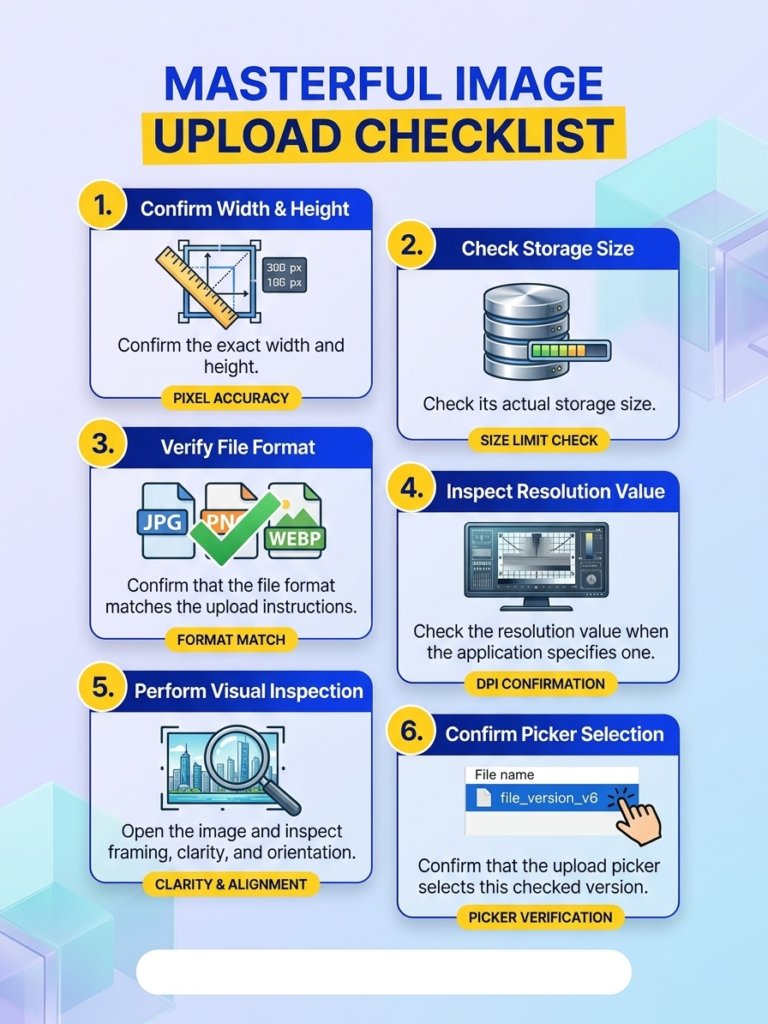
A dimensions error calls for a dimension check. A file-size error calls for compression. An unsupported-format message calls for conversion.
If all file checks pass, record the exact portal message before trying another change. An expired session or interrupted upload needs a different response from an unsuitable image.
Why 213 pixels does not mean 3.5 centimetres
Printed size depends on both pixel count and resolution. At 300 pixels per inch, 213 pixels spans about 1.80 centimetres.
The calculation is 213 divided by 300, multiplied by 2.54. That arithmetic explains image sizing; it does not establish a printed PAN photograph requirement.
Keep printed-photo instructions separate from digital upload instructions. Successful UTI photo resize starts with knowing which output you need.
How do you resize a UTI signature separately?
A signature needs a different frame from a headshot. Using the photograph preset can squeeze handwriting or cut off the final stroke.
Follow the signature field’s own instructions
Some third-party UTI tools display 400 × 200 pixels and 600 DPI for signatures. MyEagleGuide showed those values during this October 2026 review. They remain tool presets, not universal proof of current acceptance. MyEagleGuide’s signature preset.
Copy the dimensions and file-size limit from your application’s signature field. Do not carry over the photograph’s settings.
Suppose a signature has a long underline extending past the final letter. A tight automatic crop could remove that line.
Leave enough space for every stroke while removing unnecessary paper around the signature. Keep the handwriting upright and preserve its proportions.
Start with a clean source
Use plain paper and follow the application’s ink instructions. Photograph or scan the page in even light.
A dark shadow across the page can hide thin pen strokes. Retaking the image usually gives you more control than applying harsh contrast.
Avoid tracing the signature digitally or replacing it with typed script. Prepare the image of the signature that the application requests.
Save the files with distinct names, such as “pan-photo-final.jpg” and “pan-signature-final.jpg.” Check each file before choosing its upload field.
A complete UTI photo resize session can involve several different files. Treating each field separately prevents a correct photo from masking an incorrect signature.
Supporting documents may require another format, including PDF. Read that field’s instructions before converting or combining anything.
Is an online UTI photo crop tool safe to use?
A photo tool may ask you to choose a file without clearly explaining where it processes that file. Read its privacy information before selecting an identity photo.
Check what the service says about processing
During my October 2026 review, VinlyeePro’s resizer described processing images inside the browser. That describes the site’s stated approach; it does not establish the behavior of every tool online.
The site’s file-converter privacy guide explains the difference between browser processing and server uploads. A server upload sends a copy to another computer for processing.
Do not assume that “free” or “no signup” means local processing. Look for a clear explanation of uploads, storage, and deletion.
A UTI photo crop tool only needs the image you want to edit. Avoid supplying unrelated identity documents merely to unlock basic cropping.
Keep control of your working copies
Imagine preparing a PAN photo on a shared computer at a print shop. Even a browser-based tool can leave your downloaded file in the Downloads folder.
Save the checked result to your own storage. Remove temporary copies from the shared device when you finish.
Do not include your PAN number or passport number in the image filename. A simple descriptive name makes the file easier to manage.
Use the downloaded image directly when possible. Screenshots create a new image and can change its dimensions.
If you transfer the file between devices, check the received copy again. Some sharing methods can change an image’s format or size.
Your UTI photo resize workflow should account for the whole journey, from original photograph to final attachment.
Can I prepare a PAN photo from the US, UK, or Canada?
Living abroad can make old PAN guides especially confusing. Your location alone does not decide your application form or image requirements.
Choose the current form for your circumstances
UTIITSL introduced new PAN application forms from April 1, 2026. Its notice says it stopped accepting the old forms after March 31, 2026. UTIITSL’s current notice.
The Income Tax Department lists Form 93 for individual Indian citizens, including NRIs. NRI means a non-resident Indian. It lists Form 95 for individuals who are not Indian citizens. Current PAN form guidance.
For example, an Indian citizen living in Toronto should not choose a foreign-citizen form solely because of residence. Check the current category before preparing attachments.
In October 2026, a guide that automatically directs everyone to Form 49A or 49AA needs updating. Follow the live application route and its supporting instructions.
Understand who this guidance serves
The Ministry of External Affairs reported 5,693,609 overseas Indians in the United States for January 2025. Its figures also recorded 3,611,290 in Canada and 1,339,969 in the United Kingdom.
These figures include non-resident Indians and people of Indian origin. They describe communities, not numbers of PAN applicants or online searches. MEA’s January 2025 diaspora data.
The practical point is straightforward. Someone in London and someone in Mumbai should each follow their selected application’s instructions.
Do not substitute local passport-photo rules for PAN upload requirements. Tell a photographer which document and output you need.
You can complete UTI photo resize abroad using the same basic editing steps. The correct form, current upload instructions, and checked final file remain the key decisions.
Frequently Asked Questions
Can I do UTI photo resize on my phone?
Yes. Use a browser tool that lets you enter dimensions and choose the output format. Save the result, then check its file information before uploading it.
How do I crop a photo to 213 × 213 pixels?
Choose a square crop that keeps your face naturally proportioned. Resize that crop to 213 pixels wide and 213 pixels high. Use those dimensions only when your application requests them.
Is cropping the same as resizing?
No. Cropping removes parts around the image’s edges. Resizing changes its pixel dimensions. Crop first when the original shape differs from the required shape.
Can I resize a photo without cropping it?
Yes, when the original and target share the same shape. If their proportions differ, stretching can distort your face. Start with a better-framed source when cropping would remove essential details.
Why does my 213 × 213 photo still fail?
Dimensions are only one check. Inspect the format, file size, resolution instructions, and saved image. Read the exact error before deciding which setting to change.
Does changing a photo to 300 DPI make it clearer?
Changing the resolution label alone does not add detail. Start with a sharp original. Use the required DPI value, while checking pixel dimensions separately.
Should I upload JPG, PNG, or HEIC?
Choose the format named beside your application’s upload field. If it requests JPEG, convert PNG or HEIC properly. Renaming the extension does not perform that conversion.
Are JPG and JPEG different formats?
JPG and JPEG commonly identify the same image format. Follow any filename-extension instruction the portal gives. Also check that the image actually contains JPEG data.
Can I use the same image for UTI and Protean?
You can start with the same original photograph. Prepare separate exports when the two application routes request different settings. A file that fits one route may not fit another.
Does successful photo uploading mean my PAN application has approval?
No. Uploading only completes that file-transfer step. The service provider still needs to process the application and review the required information.
Do I need a paid app for UTI photo resize?
You do not necessarily need a paid app. A suitable browser tool can handle cropping, resizing, and conversion. Choose one that provides the controls your application requires.
Ready to finish your UTI photo resize?
Start with the instructions beside your application’s upload field. Keep cropping, pixel dimensions, file size, and resolution separate in your mind.
Use a clear original, preserve your natural appearance, and prepare the signature as its own file. After downloading, inspect the saved result rather than relying on the editor’s preview.
For overseas applications, check the current form before preparing attachments. Your address alone does not choose the correct route.
Open the Photo Resizer with your requirements beside you, then work through each check. The file you verify is the file you should upload.