
The headshot you took by the window for a job application carries more than your face. Tucked inside the file there’s usually a pair of GPS coordinates, and anyone who receives the original can drop them into a map in seconds.
You can remove location data from a photo on any phone or computer in under a minute. The catch is that the usual advice (right-click, Properties, done) leaves gaps, and some popular shortcuts don’t work the way people think. Below you’ll find what a photo really stores, where the location leaks, exact steps for iPhone, Android, Windows and Mac, and a quick check that the tag is gone. We build browser tools at Vinlyee Pro, so we also cover what those do well here and the one side effect to expect.
What’s actually inside a photo file
Almost every JPEG or HEIC from a phone carries EXIF data, short for Exchangeable Image File Format. It dates from the 1990s, when it let photographers look up aperture and shutter speed later. Phones kept that and added more:
- GPS coordinates (latitude, longitude, sometimes altitude) whenever Location Services is on for the camera
- The device make and model, and sometimes a serial number
- When the photo was taken and last edited
- The app that last saved the file
- A small embedded thumbnail
- Orientation, so the image opens the right way up
XMP and IPTC blocks can add captions, copyright notes and edit history. Apple notes that a phone can work out coordinates from mobile networks, Wi-Fi and Bluetooth as well as GPS, so a photo shot indoors can still be tagged (Apple’s guide to location metadata).
Location is the field that matters, because it points at a real place in a real life: a home, a school gate, a workplace. In December 2012 a photo published by VICE carried GPS tags that put John McAfee, then a person of interest in a Belize police investigation, at a resort in Guatemala, and he was arrested there within days (PetaPixel’s report). Most of us aren’t on the run, but the mechanism is identical.
European law agrees that location is sensitive. GDPR Article 4(1) lists “location data” among the identifiers that can make a person identifiable (text of Article 4). That duty sits with organisations handling your files, not with you personally, and we’re not lawyers, but it explains why a recruiter has no business holding your coordinates by accident.
Where the location leaks, and where it doesn’t
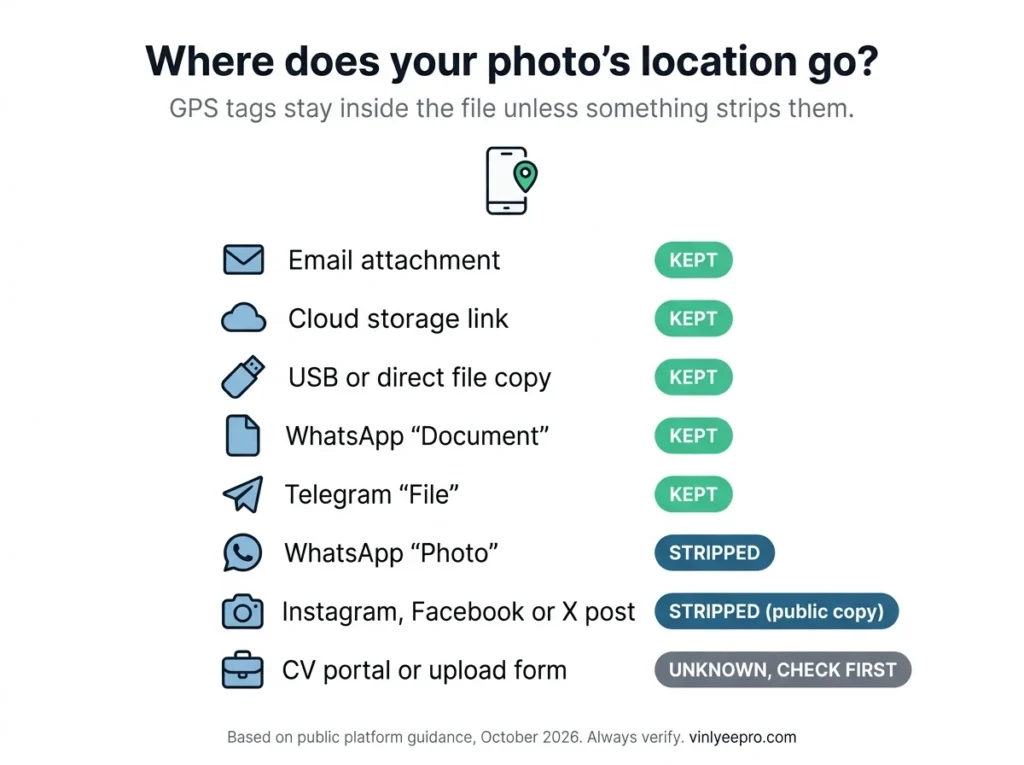
Whether the coordinates travel with a photo depends less on the photo than on how you send it. The same app can strip or keep them depending on one menu choice. This table summarises what public guides report as of October 2026 (fast.io and Google’s help pages). Platforms change, so test anything that matters.
How you share it | Does the location usually survive? |
|---|---|
Email attachment (Gmail, Outlook, Apple Mail) | Yes. The original file goes out untouched |
Cloud link (Google Drive, Dropbox, OneDrive) | Yes, except Google Photos links with “Remove geo location in items shared by link” switched on |
USB, Bluetooth or any direct file copy | Yes. The file is copied as is |
WhatsApp, sent as a photo | Mostly no. Most EXIF is stripped, GPS included |
WhatsApp, sent as a document | Yes |
Telegram, sent as a file | Yes (sent as a photo, it’s stripped) |
Instagram, Facebook or X feed post | Removed from the public copy; the platform may keep the original |
A CV portal or marketplace upload form | Unknown. It depends entirely on that site |
Signal and iMessage get conflicting reports depending on who you ask, which is itself a good reason to strip first. The last row is the one most guides skip and the one job seekers actually hit: nobody publishes whether a given applicant portal strips EXIF on upload, so don’t leave it to chance.
Signal and iMessage get conflicting reports depending on who you ask, which is itself a good reason to strip first. The last row is the one most guides skip and the one job seekers actually hit: nobody publishes whether a given applicant portal strips EXIF on upload, so don’t leave it to chance.
[IMAGE 2: infographic, see section 6]
How to remove location data from a photo, device by device
iPhone and iPad
Apple’s guide covers all three situations. Before sending: open Photos, select the photo, tap Share, then Options, and switch Location off. The sheet then shows “Location Not Included”. That switch applies to one share only, and there’s no remembered default (people were still asking Apple for one on its forum in 2025). For a photo you already have: open it, tap the info button, tap Adjust, then Remove Location. For future photos: Settings → Privacy & Security → Location Services → Camera → Never.
Android
Prevention first: open your camera app’s settings and turn off the location tag (it’s usually called Location tags or Save location). For photos you already have: on a Samsung Galaxy, the Gallery app lets you edit a photo’s details and remove the geolocation. Google Photos is trickier. Google’s help page says you can only change or remove estimated or manually added locations, so a location the camera wrote can’t be removed there (Google Photos Help). Plenty of guides still send you to Google Photos for this, so don’t rely on it.
There’s also a recent change. Android’s system Photo Picker strips location by default when you hand a photo to an app, and the August 2026 update adds an “Include location info?” prompt for apps that ask for it (Android Authority). That only helps when an app uses the picker, so don’t assume a random website’s upload button does.
Windows 11
Right-click the photo, choose Properties, open the Details tab and click Remove Properties and Personal Information. Pick “Create a copy with all possible properties removed”, then open the copy’s Details tab and confirm there’s no GPS section.
Know its limits. Microsoft doesn’t publish what this tool covers. A metadata-software vendor, so a source with something to sell, reports from its Windows 11 testing (July 2025) that it leaves most EXIF fields, the embedded thumbnail and camera serial numbers in JPEGs, and copies unsupported file types unchanged without warning (Digital Confidence). Treat that as a reason to verify, not as a verdict.
Mac
In Photos, Apple’s guide shows how to remove location metadata from images in your library. To share a copy without it, choose File → Export and untick Location Information in the export options.
Any computer, offline: ExifTool
ExifTool is the free, open-source tool metadata specialists use. Its documentation describes a special All tag that deletes every metadata group the tool is able to delete, which gives you the command exiftool -all= photo.jpg. Two details save headaches. By default it keeps your original next to the cleaned file with _original added to the name, so check which one you attach. And on JPEGs, wiping everything also removes the colour profile and the date and time stamps.
In your browser, without uploading
Browser compressors and resizers, ours included, redraw your image on a canvas and save it again. That builds a new file from the pixels, so the original metadata block isn’t carried across. Developers who build these tools flag two side effects: orientation tags can be lost (DEV Community) and wide-gamut colour profiles get flattened to sRGB, so a very vivid photo can look slightly duller (another write-up). For a CV photo that trade is usually worth it. For a photographer’s portfolio it isn’t.
Five traps that survive “I removed the location”
- The thumbnail trap. Many JPEGs carry a small preview image inside the EXIF block, and some editors don’t update it when you crop. The bug became well known in 2003, when a blogger posted face-only crops whose embedded thumbnails still showed the original shots (Consuming Experience). It still bites: one forum user who cropped a photo to passport size found that the website’s review page displayed a low-resolution version of the uncropped original (ImageMagick forum). Crop first, strip second, check last.
- The send-mode trap. WhatsApp and Telegram strip photos sent the normal way but pass the original through when you pick Document or File. Telegram Desktop’s drag-and-drop reportedly defaults to file mode on some systems, so it’s easy to do by accident.
- The shared-link trap. Google’s location setting covers links shared from Google Photos only. Download the photo and email it, and Google says the original location can still be in the file (Google Maps Help).
- The wrong-file trap. Windows’ “Remove the following properties from this file” edits the original in place, while ExifTool and the “create a copy” option leave two files side by side. Mix them up and you can attach the one that still has the GPS. Check the file name and its Details tab before you upload.
- The picture-itself trap. Even Google’s help page notes that people can guess a location from landmarks in a photo. Street signs, house numbers, a distinctive view from a window or a reflection in glasses can give away what the metadata no longer does.
How to check the location is really gone
Check the exact file you’re about to send, not the original.
- Windows: right-click, Properties, Details, then scroll to the GPS group. No Latitude or Longitude lines means it’s gone.
- iPhone: open the photo’s info panel. If a map or place name shows, location data is still there.
- Mac: open the file in Preview, choose Tools → Show Inspector and look for a GPS tab.
- Any computer:
exiftool -gps:all photo.jpgprints any GPS tags it finds, and empty output means none. To look for a leftover preview, runexiftool -ThumbnailImage -b photo.jpg > thumb.jpg. If thumb.jpg isn’t empty, a thumbnail is still inside.
Don’t paste the photo into an online “EXIF viewer” to check it. That uploads the very file you’re trying to protect. Our guide to online file converter privacy explains how to tell whether a tool really keeps files on your device.
How to check the location is really gone
Check the exact file you’re about to send, not the original.
- Windows: right-click, Properties, Details, then scroll to the GPS group. No Latitude or Longitude lines means it’s gone.
- iPhone: open the photo’s info panel. If a map or place name shows, location data is still there.
- Mac: open the file in Preview, choose Tools → Show Inspector and look for a GPS tab.
- Any computer:
exiftool -gps:all photo.jpgprints any GPS tags it finds, and empty output means none. To look for a leftover preview, runexiftool -ThumbnailImage -b photo.jpg > thumb.jpg. If thumb.jpg isn’t empty, a thumbnail is still inside.
Don’t paste the photo into an online “EXIF viewer” to check it. That uploads the very file you’re trying to protect. Our guide to online file converter privacy explains how to tell whether a tool really keeps files on your device.
[IMAGE 3: your before/after screenshots, see section 5]
[YOUR EXPERIENCE · SLOT 2] Insert your before/after screenshots of the Details tab, GPS group visible, then gone. Add one caption sentence: which file, which method. Use a test photo from a public place, not your home.
Why this matters for a CV photo
If you’re applying in Germany, Austria, Spain or anywhere else a headshot is normal, the photo goes through a portal, gets stored, and often gets forwarded by email, which is the one route in the table that keeps everything. We’ve covered the right dimensions (413 × 531 px at 300 DPI) in our CV photo size guide and why a photo rarely breaks ATS parsing on its own in our CV photo and ATS guide. What we hadn’t covered is the file itself.
A safe order of work:
- Crop to size with the Image Resizer.
- Compress it with the Image Compressor so the finished CV stays inside portal limits (see CV file size too large).
- Strip the metadata with one of the methods above, or confirm the re-save did it.
- Check for GPS and a leftover thumbnail.
- Place it in your CV, then run the finished file through the ATS Resume Checker.
Documents carry hidden fields too. A PDF can hold the author’s name and the software that made it, which is one more reason to handle files on your own device, as we explain in is it safe to merge PDF files online.
Quick answers
Does removing location data lower photo quality?
Deleting metadata on its own doesn’t touch the pixels, and the block is small, usually a few kilobytes up to a few dozen. Quality only changes if the tool re-encodes the image, as compressors and resizers do.
Does WhatsApp remove location data from photos?
Public guides report that it strips most EXIF, GPS included, when you send a normal photo, but not when you send the same file as a document.
Does a screenshot remove location data?
A screenshot is a new image, so the original’s GPS tag isn’t copied into it. It carries its own device and time details and loses resolution, so check it too.
Is it safe to use an online EXIF remover?
Only if it processes the file in your browser. A tool that uploads your photo has already received the location it claims to remove.
Should I just turn off location for the camera?
It stops new photos being tagged, which is the cleanest fix, but you lose place-based albums and it does nothing for photos you’ve already taken.
The short version
Strip the location from a copy, check the exact file you’ll send, and never assume an upload form will do it for you. To do it without sending anything anywhere, the Image Compressor, Image Resizer and Basic Image Editor all run in your browser, and so does the ATS Resume Checker for the CV the photo will sit in.