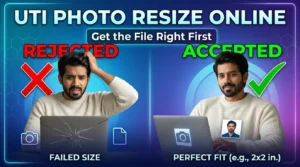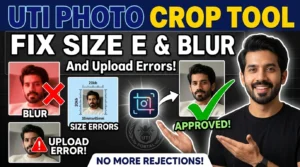

Your photo looks fine, but the PAN application keeps rejecting it. In October 2026, a UTI photo crop tool can help you fix the file. It crops your picture and adjusts its dimensions for a UTIITSL PAN application. The important part comes before downloading: match the settings shown in your current application. A preset alone cannot confirm that your picture meets every requirement.
This guide explains photo size, compression, signatures, phone formats, and the DPI setting that causes confusion. You will also learn how to check the finished file before uploading it. If you apply from the US, UK, or Canada, the same preparation steps help. Start with your original photo and keep the application instructions beside you.
What size should I use in a UTI photo crop tool?
A search for UTI photo dimensions produces conflicting answers. Some pages suggest a square image, while others recommend a portrait rectangle. During my October 2026 review, I found both claims across dedicated resizing pages. I also found mismatched pixel and centimeter conversions. That makes checking the source more useful than copying the first number.
Treat common presets as starting points
You will often see a photo preset of 213 × 213 pixels, 300 DPI, and under 30 KB. Signature presets commonly show 400 × 200 pixels, 600 DPI, and under 60 KB. CSC Tool Hub’s published presets
Those are advertised tool presets, not a verified universal rule for every current application. Your live upload field takes priority. A UTI photo crop tool should let you enter different settings when your form requires them.
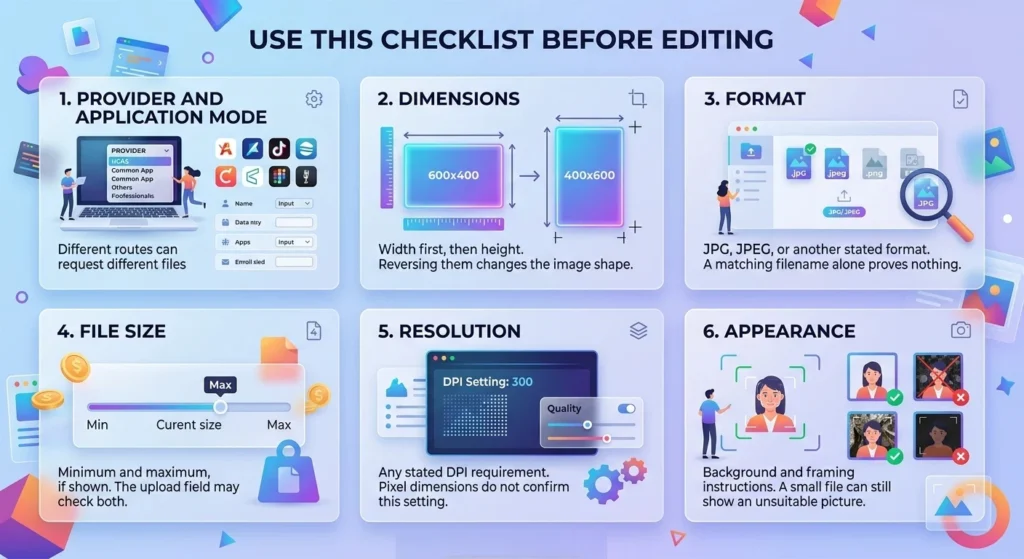
Check the April 2026 form change
UTIITSL’s April 2026 notice directs applicants to new PAN forms from April 1, 2026. It says the service stopped accepting the older forms after March 31. This form change does not, by itself, establish new photo dimensions. UTIITSL’s application notice
Suppose you live in Toronto and saved a Form 49A tutorial last year. Open the current application before copying its photo instructions. An old screenshot may describe a different application screen.
Check whether your route needs a separate photo
UTIITSL’s application guidance distinguishes Aadhaar e-KYC from routes requiring uploaded pictures. E-KYC means electronic identity verification. Its Aadhaar route retrieves identity data from UIDAI, the Unique Identification Authority of India.
Other routes request separate JPEG or JPG pictures and signatures. Check which route you selected before preparing files you might not need. Source: UTIITSL’s application guidance, checked in October 2026. UTIITSL’s application modes
How do I use a UTI photo crop tool online?
A rushed resize can squeeze your face or remove the top of your head. Crop the picture’s frame first, then adjust its output dimensions. Cropping removes unwanted edges. Resizing changes the number of pixels, the tiny squares that form a digital picture.
Start with a clear original
Choose the original camera file or a clean scan. Avoid a screenshot of a photograph inside a messaging conversation.Use even lighting and follow your application’s background instructions. Keep your face straight and leave enough room to adjust the frame.
Suppose your original measures 1,200 × 1,600 pixels. For a square target, choose a suitable square area around your face first. Then reduce that area to the requested size. Forcing the entire portrait into a square would distort its proportions.
Follow the controls on Vinlyee Pro
I reviewed Vinlyee Pro’s photo resizer in October 2026. Its page lists width, height, DPI, crop, rotation, and output format controls.
It also warns that document presets use commonly cited values. That warning matters when choosing settings for an official form.
Use this sequence:
Open the resizer and select your original picture.
Read the current application’s image instructions.
Choose pixels as the unit when the form specifies pixels.
Enter the required width and height.
Use crop mode to position your face within the frame.
Rotate the image if necessary, keeping the face upright.
Choose JPEG when the application requests JPG or JPEG.
Download the result and inspect its saved properties.
The page lists PNG, JPEG, and WebP as input formats. Convert an unsupported source before trying to load it.
You can also use the basic image editor for a separate crop or rotation.
Check the edges before downloading
Inspect your hair, chin, and shoulders. Follow any face placement guidance shown by the application.
Do not add labels, decorative borders, beauty filters, or replacement facial details. Keep the photograph faithful to your appearance.
A UTI photo crop tool prepares a file. It does not decide whether the application accepts your identity photograph.
How can I compress a PAN photo below 30 KB?
A correctly sized image can still exceed the upload limit. File dimensions and file size measure different things.
Dimensions describe width and height. Kilobytes, usually shortened to KB, describe how much storage the file uses.
How do I reduce a UTI photo to under 30 KB?
Crop the photo, set the required pixel dimensions, and export it as JPEG. Then lower JPEG quality gradually until the saved file falls below your application’s limit. Check your face at normal size after each attempt. Keep the original file, and avoid repeatedly compressing an already compressed copy.
Reduce storage without sacrificing recognition
Use Vinlyee Pro’s image compressor after setting the dimensions. Its controls include a quality slider and maximum width.
Check that any width setting preserves your required dimensions. Compression should not silently turn a correctly sized picture into a smaller one.
Mozilla’s February 2026 documentation describes JPEG export quality on a scale from 0 to 1. A tool may display that control as percentages. Quality settings do not translate directly into a predictable number of kilobytes. Mozilla’s image export reference
For a worked example, suppose your resized JPEG measures 42 KB. Lower the quality slightly and export again. If the next copy measures 27 KB and still looks clear, inspect the remaining requirements.
That example illustrates the process; it does not promise the same result for every photograph.
Leave a little room below the limit
For a stated limit below 30 KB, an output around 25–28 KB can provide a practical margin. Treat that range as a working target, not an official requirement.
Do not chase an exact 30 KB reading. Rounded displays can hide a small difference in the actual file size.
If your UTI photo crop tool creates a very small, blurry image, return to the original. Increasing sharpness cannot recover facial details that the source never captured.
Why can a 300 DPI photo download at 96 DPI?
A tool can show the right pixel dimensions while saving unexpected resolution information. This is one reason a preview alone cannot verify the final file.
DPI means dots per inch. Image tools often use this label for a saved print density setting.
Does changing DPI make a photo sharper?
Changing only the DPI setting does not add facial detail or increase pixel dimensions. It changes how software interprets the image’s print size. A blurry original stays blurry. For an upload, check pixel dimensions and any requested DPI separately. Inspect the downloaded file instead of trusting the preview alone.
The browser export detail that presets can miss
Mozilla’s February 2026 documentation states that a standard browser image export method produces 96 DPI metadata. This applies to formats that support that resolution information. Mozilla’s image export reference
Metadata means information stored alongside the picture. A developer can add another step to write a different density value. Therefore, browser tools can support other DPI settings, but their implementation matters.
A UTI photo crop tool showing “300 DPI” on screen still needs to save that value correctly.
Picture an applicant in Birmingham who downloads a 213 × 213 pixel JPEG. Its properties show 96 DPI, although the chosen setting said 300.
The next step is checking the export method or using an editor that writes the required value. Enlarging the picture randomly would address a different problem.
Understand the size calculation
Adobe’s September 2026 guidance explains the relationship between pixels, print size, and resolution. Physical size equals pixel dimensions divided by pixels per inch. Adobe’s image size guide
At 300 pixels per inch, 213 pixels represent about 0.71 inches, or 1.80 centimeters.
That means 213 × 213 pixels cannot also equal a 2.5 × 3.5 centimeter portrait at that density. The shape differs, and the measurements disagree.
Verify after the final edit
Check resolution after compression or conversion, because another export may change the stored information.
On Windows, look under the image’s Properties and Details. If your viewer hides resolution, use an editor or image inspector that displays it.
Keep pixel dimensions fixed when correcting only the density information.
How do I resize a UTI signature without cutting it off?
A signature can meet the file size limit while losing its first letter or final stroke. The crop must preserve the whole mark.
Use the signature instructions from your application. Do not reuse the photo’s square crop settings for a wide signature.
Separate digital uploads from printed forms
UTIITSL’s printed application guidance, checked in October 2026, specifies two photographs measuring 4.5 × 3.5 centimeters. It also describes particular signing positions on the printed form.
Those physical instructions do not establish the dimensions of a separate signature JPEG. Keep the two tasks distinct. UTIITSL’s submission guidelines
For a digital signature image, start with a clear scan or photograph of the handwritten mark. Follow the form’s paper and ink instructions.
Keep a small margin around every stroke
Suppose your signature includes a long underline and a loop above the first letter. Include both when drawing the crop.
A UTI photo crop tool with a signature mode can provide a suitable starting frame. Check its width, height, size limit, and density against the form.
Remove unnecessary empty space while keeping a small border around the handwriting. Avoid stretching the signature to fill every edge.
Straighten the paper before cropping if the camera captured it at an angle. Check that shadows do not cover thin strokes.
After resizing, view the result at normal size. If the handwriting breaks into faint dots, create a clearer source image.
Keep photo and signature files separate when the application provides separate upload fields.
Can I use a UTI photo crop tool on my phone?
A phone workflow becomes frustrating when the editor cannot open the camera’s file format. An image that appears in your gallery may still need conversion.
Convert HEIC to JPG before resizing
Some Apple devices save photos using HEIF, often with the .heic extension. HEIF is an image format that saves storage space.
Apple’s support guidance, checked in October 2026, explains how to export these images as JPEG. It also describes the Camera settings option called Most Compatible. On supported devices, that option makes new photos use JPEG. Apple’s photo format guidance
Changing that camera setting does not convert existing photos.
Suppose an applicant in New Jersey selects an iPhone image and the resizer refuses it. Check whether the source file uses HEIC.
Convert it first with an app that supports the format. Vinlyee Pro’s image converter also lists HEIC among its supported inputs.
Do not simply rename “photo.heic” to “photo.jpg.” Renaming changes the label, not the image data.
Find and check the actual download
After using a UTI photo crop tool, open your phone’s Downloads or Files location. Confirm which copy you just saved.
Similar thumbnails make it easy to select the original again. Give the final file a clear name, such as “pan-photo-final.jpg.”
Open that downloaded file before returning to the application. Check its dimensions, format, and size wherever your phone displays those details.
If the file picker hides the download, try browsing through Files instead of the photo gallery. Keep the editor open until you confirm that the result saved successfully.
Can applicants in the US, UK, and Canada use these tools?
Living abroad can create confusion about which country’s photo instructions apply. A local passport photo template does not automatically match an Indian PAN upload field.
Follow the requirements of the application receiving the file.
Choose the application before the photo template
UTIITSL separates applications for Indian citizens and foreign citizens. Its current guidance also lists different form numbers for those categories. UTIITSL’s application categories
Your location alone does not tell you which category to choose. Read the provider’s current eligibility instructions before starting.
For example, imagine someone in Vancouver holding a digital copy from a local photo shop. Ask for the original digital file, then prepare a copy for the PAN application’s stated dimensions.
Do not assume the shop’s default passport export will work unchanged.
Why overseas instructions matter
India’s Ministry of External Affairs publishes a country table covering overseas Indians. The table reviewed in October 2026 lists 5,409,062 in the United States.
It lists 2,875,954 in Canada and 1,864,318 in the United Kingdom. These figures combine non-resident Indians and persons of Indian origin. They are population figures, not counts of PAN applicants. Ministry of External Affairs’ overseas population table
For an overseas applicant, a UTI photo crop tool can simplify image preparation. It cannot determine eligibility, replace supporting documents, or complete the application.
Keep the process easy to repeat
Save the original photograph, the finished upload copy, and a note of the required settings.
If the application requests another version, you can create it from the original. You will not need to rely on a compressed image someone forwarded through a chat.
Check dispatch, payment, and document instructions separately. Those steps do not change merely because the photo file now fits.
Why does UTI reject my photo after resizing?
Another resize will not fix every upload failure. Read the exact error message before changing the image again.
Separate a file problem from an application or connection problem. A frozen page gives different clues from a message about image dimensions.
Match the fix to the error
Check these points in order:
Confirm that you selected the final file instead of the original.
Compare the saved width and height with the upload instructions.
Check the actual file format and required size range.
Inspect any stated DPI requirement.
Open the image and check framing, clarity, and orientation.
Read any separate message about missing application information.
Suppose your preview looks correct, but the upload field reports an unsupported format. Repeated cropping will not help a PNG when that field requests JPEG.
Convert the file properly, then verify its other properties again.
A UTI photo crop tool handles image preparation. The application may still require other corrections before you can continue.
Keep identity images out of unnecessary uploads
Vinlyee Pro’s August 2026 file converter privacy guide discusses information that photographs can carry.
That includes metadata, such as capture details or location information when present. Check what an editor retains before sharing the finished image.
Prefer tools that clearly explain where processing happens and whether they retain files. A claim about local processing deserves more attention than a general “safe” badge.
Never enter a PAN number, account password, or one-time code just to crop an image.
On a shared computer, collect your files and sign out when finished. Remove your own working copies once you have saved them somewhere appropriate.
Frequently Asked Questions
Can I resize my PAN card photo online?
Yes. Use an image editor that controls crop, dimensions, format, and file size. Copy the requirements from your current PAN application, then inspect the downloaded result before uploading it.
What is the exact UTI PAN photo size in pixels?
Many tools offer 213 × 213 pixels as a common UTI preset. Confirm that value against your application’s upload field. Do not treat third-party presets as universal instructions.
What is the file size limit for a UTI photo?
Many UTI tools target a photo below 30 KB. Your current upload field should provide the applicable limit. Check for a minimum size as well as a maximum.
Do I need 300 DPI for a UTI photo?
Use 300 DPI if your application specifically requests it. Check the downloaded image’s density information separately from its pixel dimensions. A setting in the editor does not prove that the export preserved it.
Why is my PAN photo blurry after resizing?
The source may lack detail, or compression may remove too much. Start again from the clearest original. Avoid enlarging a tiny image or repeatedly saving compressed copies.
Is JPG the same as JPEG?
JPG and JPEG commonly identify the same image format. Choose that format during export when the form requests it. Changing an unrelated file’s extension does not convert it.
Can I crop a UTI photo on my mobile?
Yes, if the tool supports your mobile browser and source format. After downloading, locate the saved file and check its properties. Convert unsupported HEIC images before resizing.
Is a free UTI photo crop tool safe?
Safety depends on the tool’s behavior and privacy practices. Prefer clear information about processing and retention. Image cropping should not require your tax identifier, application password, or verification codes.
Can I use the same size for UTI and NSDL?
Do not assume both application routes use identical settings. Check the requirements shown by your chosen provider. A provider’s name in a preset does not verify every current submission route.
Can I change my PAN card photo by cropping a new picture?
Cropping only prepares the replacement image. To change the photograph on an existing PAN record, follow the provider’s correction process. Editing a local file does not update the record.
Can I use this crop for a passport application?
Only if the finished image meets that passport authority’s requirements. A PAN preset does not establish passport compliance. Check the destination application’s framing, dimensions, format, and image rules separately.
What should I check before uploading my PAN photo?
Start with the current application instructions, then prepare a clear copy of your original photograph. Match the crop, pixel dimensions, file format, size limit, and any stated DPI requirement.
Use a UTI photo crop tool to control those settings, then inspect the downloaded file. Keep the source picture so you can make corrections without repeatedly compressing the same copy.
A tidy preview is only one part of the job. The saved file must match what the application requests.
Check the file you will upload, not just the picture you see.