Picture your desktop cluttered with dozens of PDF files—invoices from different vendors, contract drafts with varying revision numbers, and report sections scattered across multiple folders. When a client asks for “all the documents in one file,” you face a familiar dilemma: how do you combine them without paying for Adobe Acrobat?
Remote work and digital paperwork have made PDF management essential. Whether you’re consolidating expense reports, merging chapters of a thesis, or creating a single deliverable from multiple files, knowing how to merge PDFs efficiently saves time and frustration.
Adobe Acrobat remains the industry standard, but its subscription cost puts it out of reach for many users. Fortunately, robust alternatives exist—and most of them are completely free.
How to Combine PDF Files Without Adobe: Step-by-Step Guide
Using an Online PDF Merger (Vinlyeepro)
Vinlyeepro’s Merge and Split PDF tool provides a fast, secure, and free way to combine PDF files online. The service requires no registration and processes files quickly.

Step-by-step instructions:
- Navigate to the Vinlyeepro Merge and Split PDF page in your web browser
- Click “Select Files” or drag and drop your PDF files directly into the upload area
- If the tool allows reordering, arrange your files in the desired sequence by dragging them up or down
- Click the “Merge” or “Start” button to combine your PDFs online
- Wait for the processing to complete (usually 5-10 seconds)
- Click “Download” to save the merged PDF file to your device
Key benefits:
- No account creation or email verification required
- Completely free with no hidden costs
- Fast processing even for multiple files
- Clean, straightforward interface
Before uploading sensitive documents, verify that the service deletes files from its servers after processing. Most reputable online PDF tools automatically remove uploaded files within a few hours to protect user privacy.
Using Other Trusted Online PDF Merge Tools
Several alternative online services offer reliable PDF merging with their own unique features:
iLovePDF
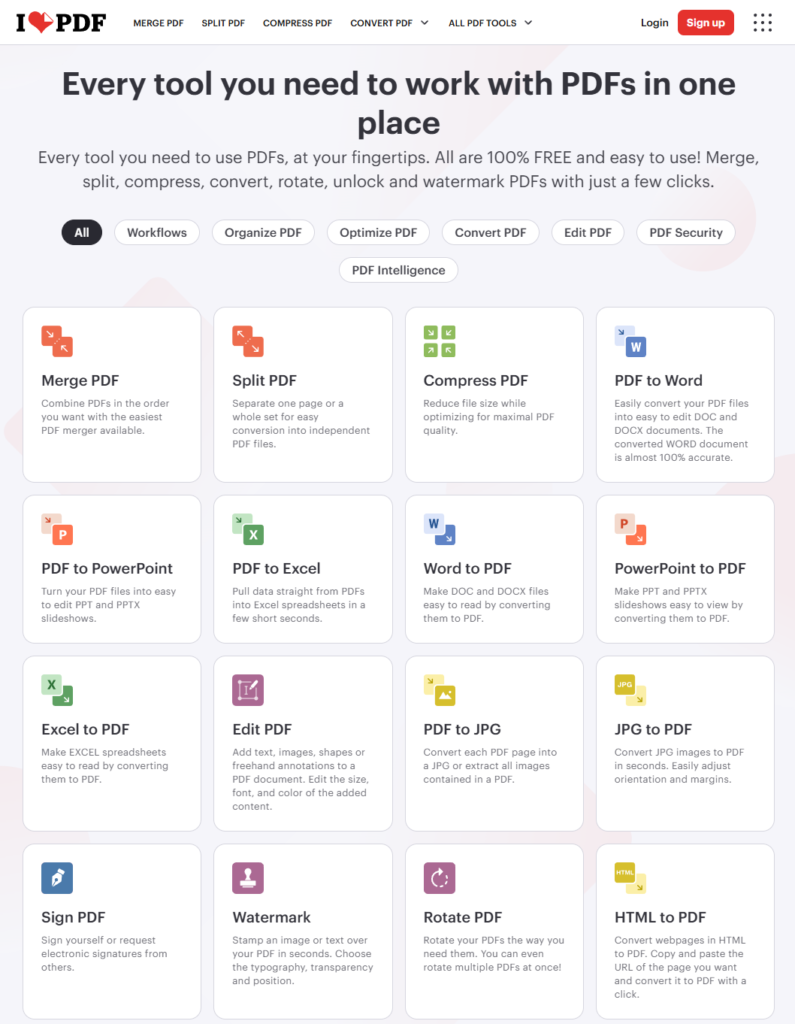
Known for batch processing capabilities, iLovePDF lets you merge multiple PDFs simultaneously. The free version has file size and task limits, but it includes mobile apps for iOS and Android, making it convenient for on-the-go PDF management.
Smallpdf
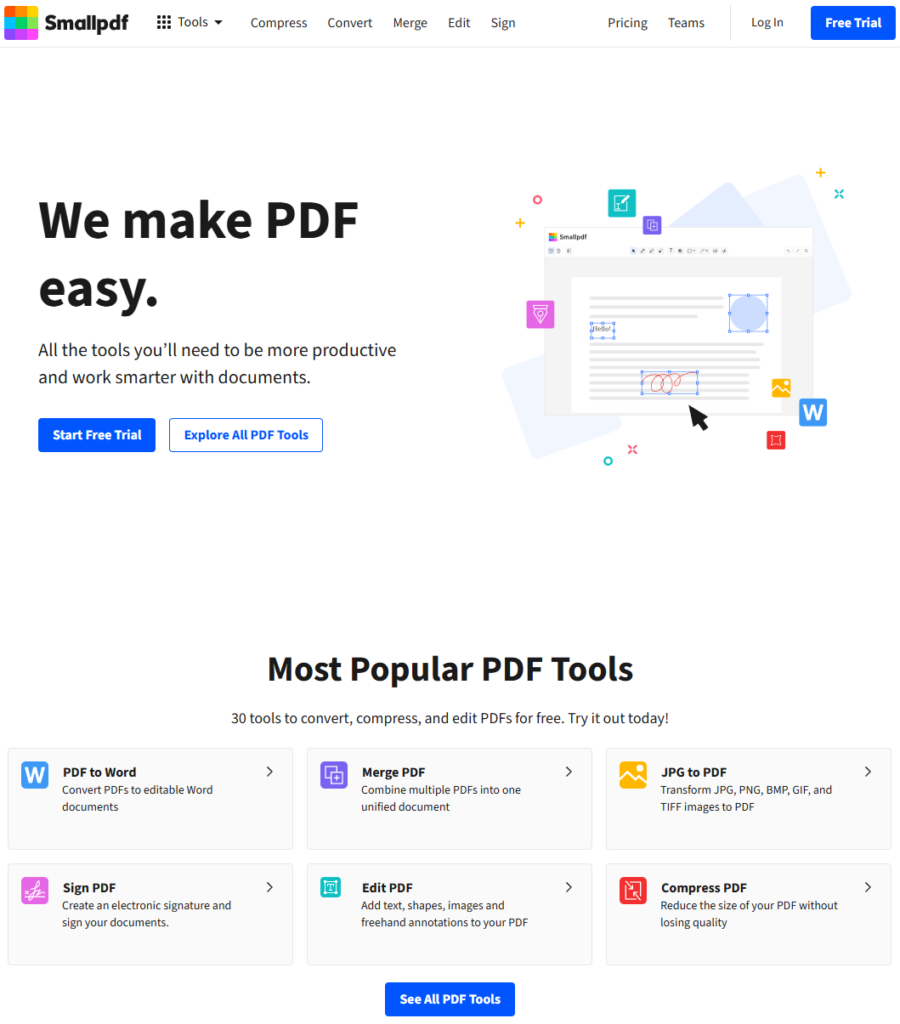
This popular platform combines an intuitive interface with comprehensive PDF tools. The free tier allows a limited number of daily tasks, making it suitable for occasional use. Smallpdf also offers compression, conversion, and editing features in addition to merging.
PDF24 Tools
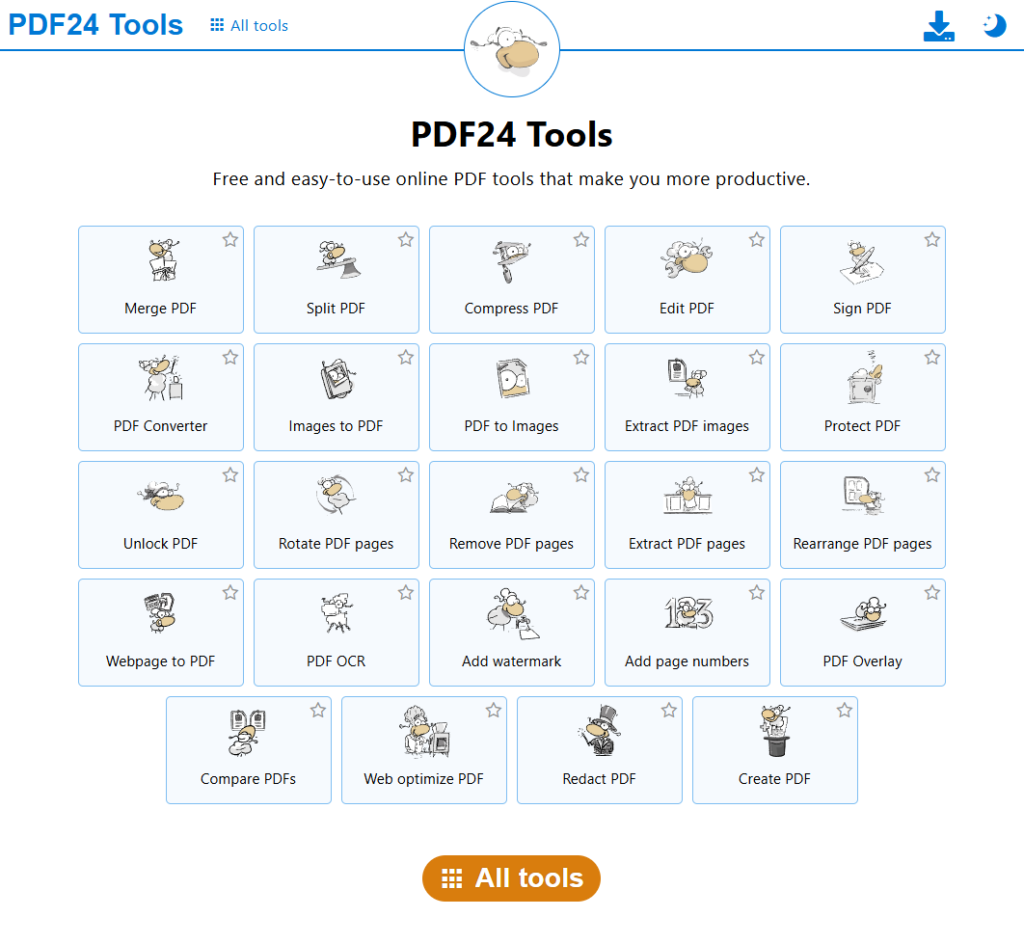
According to their official website, PDF24 Tools prioritizes user privacy. File transfers to PDF24 servers are encrypted, and all files are completely removed from servers after a short time. The service imposes no artificial file size limits, making it ideal for larger documents.
What Does It Mean to Merge PDF Files?
Merging PDFs combines multiple PDF documents into a single file while preserving all formatting, fonts, images, and layout. Unlike copying and pasting content between documents, proper PDF merging maintains the original structure and appearance of each page.
Common scenarios where you might need to combine PDF files include:
- Financial Administration: Consolidating invoices, receipts, or statements for expense reports or tax filing
- Academic Work: Merging research paper chapters, appendices, or bibliography sections into one complete document
- Job Applications: Combining your resume, cover letter, writing samples, and portfolio into a single submission
- Business Deliverables: Creating unified client presentations from separate proposals, reports, and supporting materials
- Legal Documents: Assembling contracts, exhibits, and addendums into a complete agreement
The key advantage of merging PDFs properly is that quality remains intact. Your combined document looks exactly as intended, with no formatting errors, missing images, or font substitutions.
Why Use Online Tools to Merge Your PDF Files for Free?
Online PDF combiners offer several compelling advantages for casual users and professionals alike:
No Software Installation Required
Browser-based tools work immediately. You don’t need to download applications, wait for installations, or use valuable disk space. This makes them ideal when you’re working on a shared computer or need quick results.
Universal Device Access
Online tools function on Windows, Mac, Linux, and even mobile devices. As long as you have a browser and internet connection, you can merge PDFs from anywhere.
Quick and Straightforward Process
Most online PDF mergers follow a simple three-step workflow: upload files, arrange them in order, and download the combined result. The entire process typically takes less than a minute.
Ideal for Occasional Tasks
If you only need to merge PDFs occasionally, online tools provide the perfect solution. You get professional results without committing to software licenses or subscriptions.
However, online tools do come with considerations:
Security and Privacy Concerns
When you upload files to an online service, they temporarily exist on someone else’s servers. Reputable tools like PDF24 Tools encrypt file transfers and automatically delete uploaded documents after processing. Always review a tool’s privacy policy before uploading sensitive information.
File Size Limitations
Many free online tools limit upload sizes to 10-50 MB per file. This works fine for most documents but can be restrictive for PDFs with high-resolution images or extensive page counts.
Internet Dependency
You’ll need a stable internet connection to upload files and download results. Poor connectivity can slow the process or cause uploads to fail.
For highly sensitive documents—financial records, legal contracts, or personal information—consider using offline desktop software instead. This keeps your files on your own computer throughout the merging process.
General steps for most online tools:
- Visit the tool’s website and locate the “Merge PDF” or “Combine PDF” option
- Upload your files by clicking “Select Files” or using drag-and-drop functionality
- Reorder files if necessary by dragging them into your preferred sequence
- Click “Merge,” “Combine,” or a similar action button
- Wait for processing to complete
- Download the merged PDF to your computer
Always review each tool’s privacy policy before uploading confidential documents. Look for statements about encryption, data deletion timelines, and server location.
How to Combine PDF Files in Windows 10 Without Adobe
Method 1: Using Microsoft Print to PDF (Built-In)
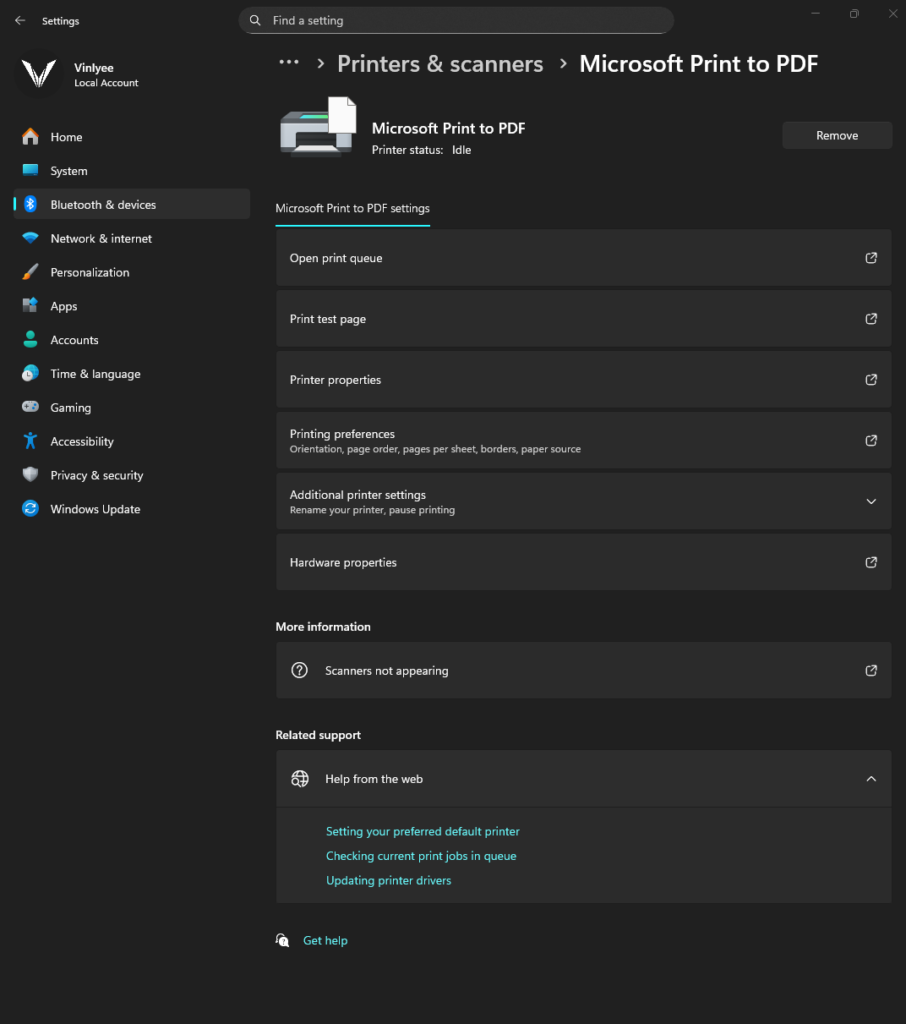
Windows 10 includes native support for creating PDF files using a virtual printer called “Microsoft Print to PDF.” While not designed specifically for merging PDFs, this feature can combine documents indirectly.
Step-by-step process:
- Open your first PDF in Microsoft Edge or your default PDF reader
- Press Ctrl+P to open the print dialog, or select File > Print
- In the printer dropdown, select “Microsoft Print to PDF” instead of a physical printer
- Click “Print” and choose where to save the new PDF file
- Repeat this process for each additional PDF you want to include
Important limitations:
This method works better for printing multiple documents sequentially rather than true PDF merging. You’ll need to manually append each document, and the process becomes cumbersome with more than two or three files. For efficient merging of multiple PDFs, consider the desktop software options below.
Method 2: Using Free Desktop Software (PDFsam Basic)
PDFsam Basic stands out as one of the most respected free PDF tools available. As stated on their official website, PDFsam Basic is “free and open source since 2006,” offering merge, split, extract pages, rotate, and mix capabilities. The software is available for Windows, Mac, and Linux.
Why choose PDFsam Basic:
Privacy-First Approach
All processing happens locally on your computer. Your PDF files never leave your device or get uploaded to third-party servers, making this the safest option for sensitive documents.
Comprehensive Features
Beyond merging, you can split PDFs at specific page numbers, extract individual pages, rotate pages, and mix multiple documents by alternating pages—perfect if you have a single-sided scanner.
Completely Free
PDFsam Basic is truly free with no hidden costs, trial periods, or feature limitations. It’s open-source software maintained by an active developer community.
Step-by-step instructions:
- Download PDFsam Basic from the official pdfsam.org website
- Install the application following the standard installation wizard
- Launch PDFsam Basic and select the “Merge” module from the main screen
- Click the “Add” button to browse and select the PDF files you want to combine
- Arrange files in your preferred order by dragging them up or down in the list
- Optionally, specify page ranges if you only want certain pages from each file
- Choose your output destination folder and enter a filename for the merged PDF
- Click the “Run” button to merge your PDFs
- Navigate to your chosen output folder and open the newly created merged file
The entire process takes less than a minute, and since everything happens on your computer, there’s no waiting for uploads or downloads.
Method 3: Using PDF Merger & Splitter (Microsoft Store App)
For users who prefer a native Windows app with a modern interface, the “PDF Merger & Splitter” application from the Microsoft Store offers a lightweight solution.
Installation and use:
- Open the Microsoft Store application on your Windows 10 device
- Search for “PDF Merger & Splitter” and select the free version
- Click “Get” to download and install the app
- Open PDF Merger & Splitter from your Start menu
- Select the “Merge” option from the main screen
- Click “Add PDFs” and navigate to the files you want to combine
- Arrange the file order if needed using the up/down arrows
- Click “Merge” and choose where to save your combined PDF
- Open the merged file from your chosen location
This option works well for users who want a simple, native Windows experience without the complexity of more feature-rich applications.
How to Combine PDF Files in Chrome
Method 1: Using Chrome Extensions
The Chrome Web Store offers several extensions specifically designed for PDF manipulation, including merging multiple documents.
Finding and using a PDF merge extension:
- Open Chrome and navigate to the Chrome Web Store
- Search for “PDF Merge” or “Combine PDF”
- Look for highly rated extensions with positive reviews and recent updates
- Click “Add to Chrome” to install your chosen extension
- Click the extension icon in your browser toolbar (it will appear next to the address bar)
- Follow the extension’s interface to upload or select your PDF files
- Arrange files in your desired order
- Click “Merge” or “Combine”
- Download the resulting merged PDF
Important security note:
Before installing any Chrome extension, carefully review its permissions and privacy policy. Only install extensions from verified developers with strong user ratings. Extensions have access to your browsing data, so choose trustworthy options.
Method 2: Using Google Drive (Indirect Method)
While Google Drive doesn’t offer direct PDF merging, you can use Google Docs as an intermediary for text-heavy documents.
Process overview:
- Upload all your PDF files to Google Drive
- Right-click the first PDF and select “Open with > Google Docs”
- Wait for Google Docs to convert the PDF (this may take a few moments)
- Repeat for the second PDF in a new tab
- Copy content from one Google Doc and paste it into the other
- Once all content is combined, select “File > Download > PDF Document (.pdf)”
- Save the resulting PDF to your computer
Significant limitations:
This method frequently alters formatting, especially for PDFs with complex layouts, tables, or embedded images. Google Docs conversion works best for simple text documents. For preserving original PDF formatting, use dedicated online tools or desktop software instead.
Method 3: Using Online PDF Mergers in Chrome
Chrome provides excellent compatibility with web-based PDF tools. Any online PDF merger—including Vinlyeepro, Smallpdf, iLovePDF, or PDF24 Tools—works seamlessly in the Chrome browser.
Simply navigate to your preferred online tool and follow the upload, arrange, merge, and download workflow. This approach combines the convenience of browser-based access with the reliability of dedicated PDF merging services.
How Do You Combine Two Pages of a PDF File?
Sometimes you need to merge specific pages from different PDFs rather than entire documents. Most professional PDF tools support page-level selection during the merging process.
Using PDFsam Basic for page-specific merging:
- Open PDFsam Basic and select the “Merge” module
- Add your PDF files using the “Add” button
- For each file, locate the “Page Selection” field
- Enter specific page ranges using the format “1-3,5,7-9” (pages 1 through 3, page 5, and pages 7 through 9)
- Repeat for each file, specifying only the pages you need
- Choose your output location and filename
- Click “Run” to merge only your selected pages
Using Foxit PDF Editor (Advanced Option)
According to the Foxit blog on merging PDFs, “You can merge multiple PDF files and/or pages together into one PDF file with the simple drag-and-drop command on Foxit PDF Editor.” This visual approach lets you:
- Open multiple PDFs simultaneously in the Pages panel
- Drag specific pages from one document into another
- Rearrange pages by dragging them to new positions
- Extract pages from one PDF and insert them precisely where needed
Foxit PDF Editor offers a free trial, making it worth exploring if you frequently need advanced page-level manipulation beyond what free tools provide.
What Is the Best Free PDF Merge Software?
Choosing the right PDF merge tool depends on your specific needs: privacy requirements, frequency of use, platform preference, and desired features. Here’s a detailed comparison of the top free options:
1. PDFsam Basic (Best for Privacy and Offline Use)
Strengths:
- Completely free and open source with no hidden costs
- Processes all files locally—nothing uploaded to external servers
- Comprehensive features: merge, split, rotate, extract, and mix PDFs
- Available for Windows, Mac, and Linux
- Active development and regular updates since 2006
Limitations:
- Interface feels less modern compared to sleek online tools
- Requires installation and disk space
- Learning curve slightly steeper than online alternatives
Best for: Users who prioritize privacy, work with sensitive documents regularly, or need offline PDF processing capabilities.
2. Vinlyeepro Merge and Split PDF (Best for Quick Online Merging)
Strengths:
- No registration or account creation required
- Fast processing with minimal waiting time
- Clean, intuitive interface
- Free with no daily limits or usage restrictions
Limitations:
- Requires internet connection
- Privacy depends on the service’s data handling policies
- May have file size limitations
Best for: Casual users who need to merge PDFs quickly without installing software, and who work with non-sensitive documents.
3. Smallpdf (Best for Additional PDF Tools)
Strengths:
- Extremely intuitive and polished user interface
- Comprehensive suite of PDF tools beyond merging (compress, convert, edit, sign)
- Free tier available for occasional use
- Mobile app available
Limitations:
- Free tier has daily task limits (typically 2 tasks per day)
- Premium subscription required for unlimited access
- Internet connection required
Best for: Users who occasionally merge PDFs and appreciate having access to a full range of PDF tools in one platform.
4. iLovePDF (Best for Batch Processing)
Strengths:
- Supports batch merging of multiple PDFs simultaneously
- Wide range of PDF tools included
- Mobile apps available for iOS and Android
- Free tier available
Limitations:
- Free tier has file size limits
- Task limits on free accounts
- Requires internet connection
Best for: Users who regularly need to merge multiple PDFs at once or want the flexibility of mobile access.
5. PDF24 Tools (Best for Privacy-Conscious Users)
Strengths:
- Free with no artificial file size limits
- Strong privacy protections: files encrypted during transfer and deleted promptly after processing
- Desktop version available for offline use (PDF24 Creator)
- No registration required
- Wide range of PDF tools available
Limitations:
- Interface slightly less polished than competitors
- Desktop version requires installation
Best for: Users who want free online PDF merging with robust privacy protections, or those who prefer having both online and offline options.
Quick Comparison Table
Tool | Privacy | Cost | Offline/Online | Platform | Best Feature |
|---|---|---|---|---|---|
PDFsam Basic | Excellent | Free | Offline | Win/Mac/Linux | Local processing |
Excellent | Free | Online | Any browser | No registration | |
Smallpdf | Good | Free/Premium | Online | Any browser | Full PDF suite |
iLovePDF | Good | Free/Premium | Online | Any browser + mobile | Batch processing |
PDF24 Tools | Excellent | Free | Both | Any browser + desktop | No file limits |
Tips for Merging PDFs Safely and Efficiently
Prioritize Privacy and Security
For Sensitive Documents:
Always use offline desktop software like PDFsam Basic when working with financial records, legal contracts, medical information, or personal data. This ensures files never leave your computer.
Review Privacy Policies:
Before using any online tool, read its privacy policy. Look for specific statements about:
- Encryption during file transfer
- Automatic file deletion timelines
- Server location and data jurisdiction
- Whether the service shares data with third parties
Avoid Public Networks:
Never upload sensitive documents to online PDF tools while connected to public or unsecured Wi-Fi networks. Wait until you have a secure, private connection.
Check File Size and Quality
Before Merging:
Review your source PDFs for unnecessary bulk. If files contain high-resolution images intended only for screen viewing, consider compressing them first to reduce file size.
After Merging:
Always open and review your merged PDF before deleting the originals. Verify that:
- All pages appear in the correct order
- Formatting remains intact
- Fonts display properly
- Images appear clear and correctly positioned
- Interactive elements (links, form fields) still function
Organize Files Before Merging
Use Clear Naming Conventions:
Rename your PDFs before merging with descriptive names that indicate their intended order:
- Chapter1_Introduction.pdf
- Chapter2_Methodology.pdf
- Chapter3_Results.pdf
This makes arranging files much easier, especially when working with dozens of documents.
Create a Dedicated Folder:
Before starting a large merging project, create a new folder containing only the files you want to combine. This prevents accidentally selecting wrong files and keeps your workflow organized.
Keep a Backup
Never Delete Original Files Immediately:
After merging, keep copies of your original PDFs for at least a few days. You might discover you need to re-merge in a different order, extract different pages, or make other modifications.
Use Descriptive Filenames:
Name your merged PDF clearly to distinguish it from the originals:
- Original: Contract_Draft1.pdf, Contract_Draft2.pdf
- Merged: Contract_Final_Complete.pdf
This prevents confusion and accidental overwrites.
Is it safe to merge PDFs online?
Reputable online PDF tools encrypt file transfers and delete uploaded documents after processing. However, for highly sensitive information, offline desktop software provides better security since files never leave your computer.
Can I merge PDFs without Adobe Acrobat?
Yes. Multiple free alternatives exist, including PDFsam Basic (desktop software), Vinlyeepro (online tool), and built-in Windows features like Microsoft Print to PDF. These options provide professional results without requiring an Adobe subscription.
What is the best free PDF merger tool?
The best choice depends on your needs. PDFsam Basic excels for privacy and offline use. Vinlyeepro offers the quickest online merging experience. Smallpdf provides a comprehensive suite of PDF tools. PDF24 Tools combines privacy protections with no file size limits.
How do I merge PDFs on Windows 10?
Windows 10 offers several options: use the built-in Microsoft Print to PDF feature for simple tasks, install free software like PDFsam Basic for regular merging, or access online tools through any web browser. For detailed steps, see the “How to Combine PDF Files in Windows 10 Without Adobe” section above.
Will merging PDFs reduce quality?
No. Properly merging PDFs preserves all original formatting, fonts, images, and layout. Quality degradation only occurs if you use inappropriate methods like copying content between documents or converting to other formats before merging.
Can I merge password-protected PDFs?
Most PDF merge tools require you to remove password protection before merging. Some advanced tools like Foxit PDF Editor allow you to enter the password during the merge process, but this feature is typically unavailable in free online tools.
Start Merging Your PDFs Today
Merging PDFs no longer requires expensive software or technical expertise. Whether you choose the privacy of offline tools like PDFsam Basic, the convenience of online services like Vinlyeepro, or built-in Windows features, you now have multiple free options to combine your documents professionally.
The right method depends on your specific situation. Online tools excel for quick, occasional tasks with non-sensitive documents. Desktop software provides unmatched privacy and control for regular PDF work. Browser-based options offer universal access across any device.
Ready to merge your PDFs? Try Vinlyeepro’s free PDF merger tool and combine your files in seconds—no sign-up required. For maximum privacy with sensitive documents, download PDFsam Basic and keep everything on your own computer.
Looking for more PDF productivity tips? Explore related guides on splitting PDFs, compressing large files, or converting PDFs to editable formats. Master these essential skills and transform how you handle digital documents.