
If you’ve ever refreshed your website only to see it crawl like a snail—despite paying for “premium” hosting or optimizing every image—you’ve likely encountered the Cold Cache problem.
In the world of web performance, speed is often treated like magic. We talk about “lightweight themes” and “fast servers,” but there is a hidden mechanism beneath the surface that dictates whether your site feels like a modern application or a relic of the dial-up era. That mechanism is Caching, and understanding the difference between a “Cold” and “Warm” state is the secret to maintaining a high-ranking, high-converting website.
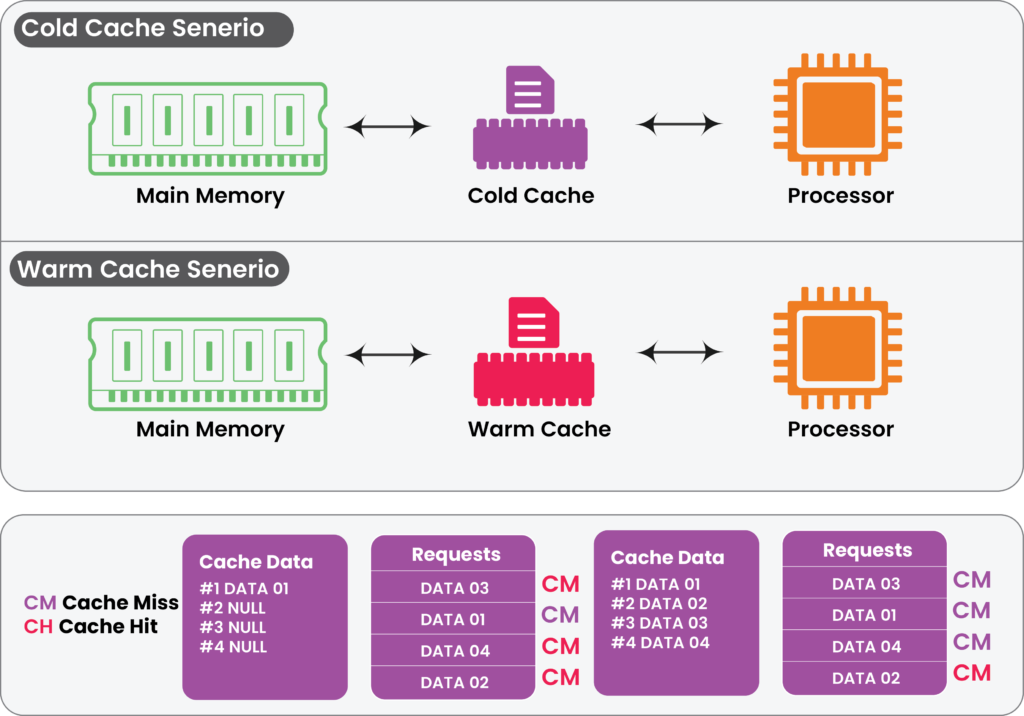
In this guide, we are going to peel back the curtain. We’ll look at why your site slows down after updates, how Googlebot views your “cold” pages, and the proactive steps you can take to ensure your visitors never see a loading spinner again.
Decoding the Cache – What’s Really Happening?
Before we compare the two states, let’s simplify what a cache actually is. Think of your website as a complex recipe. Every time a user visits, your server (the chef) has to go to the pantry (the database), chop the vegetables (process PHP code), and cook the meal (generate the HTML).
A Cache is like a pre-prepared meal sitting in a warming tray. Instead of cooking from scratch, the chef simply hands the tray to the customer. It’s instant.
What Is a Cold Cache?
A Cold Cache refers to a state where the “warming tray” is empty. The server has no pre-built version of your page ready to go. Because the storage is “cold,” the server is forced to perform every single calculation and database query from scratch for the very next visitor.
Common triggers for a Cold Cache include:
Manual Purging: You clicked “Clear Cache” in your WordPress dashboard.
Plugin/Theme Updates: Many systems automatically wipe the cache during updates to prevent styling conflicts.
Server Restarts: If your hosting provider reboots their hardware, the temporary storage (RAM) where cache lives is wiped clean.
TTL Expiration: “Time to Live” is a setting that tells a cache when to delete itself. If your TTL is set to 24 hours, your cache goes “cold” every day at the 24-hour mark.
What Is a Warm Cache?
A Warm Cache is the ideal state. It means that the most important pages of your site have already been processed and “saved” as static HTML files. When a user requests a page, the server doesn’t even “think”—it just serves the file.
A warm cache results in:
Near-Zero Latency: The server responds in milliseconds.
Low CPU Usage: Since the server isn’t running complex code, it can handle thousands of more visitors simultaneously without crashing.
Happy Users: In 2026, users expect a page to be interactive in under 2 seconds. A warm cache makes that possible.
The High Stakes of the "Cold Start"
Why should a blog owner care if their cache is a little chilly? Because a cold cache isn’t just a minor delay; it’s a performance bottleneck that affects your bottom line.
The Impact on Time to First Byte (TTFB)
TTFB is a metric that measures how long it takes for a user’s browser to receive the first “byte” of data from your server.
Warm Cache TTFB: Usually 50ms – 200ms.
Cold Cache TTFB: Often 1,000ms – 3,000ms (or more).
When your cache is cold, the user sits staring at a white screen. Industry data shows that even a 100ms delay can drop conversion rates by 7%. If your TTFB jumps by two seconds because of a cold cache, you are effectively driving half of your traffic away before they even see your headline.
The “First Visitor” Tax
The most unfair part of a cold cache is that it punishes your most active followers. If you clear your cache and then send out an email blast or a tweet, the very first person who clicks that link—your most engaged fan—gets the slowest experience. They “pay the tax” of waiting for the server to generate the cache so that the next person can have a fast experience.
Why a Cold Cache is an SEO Nightmare
Google has made it very clear: Core Web Vitals (CWV) are a ranking factor. They want to reward sites that provide a stable, fast experience.
Crawl Budget Efficiency
Googlebot is a busy program. It allocates a specific “Crawl Budget” to your site. If your pages are cold and take 3 seconds to load, Googlebot might only crawl 10 pages before it gets “tired” and moves on to another site. If those same pages were warm and loaded in 0.2 seconds, Googlebot could index 100 pages in the same amount of time.
When your cache is cold, the user sits staring at a white screen. Industry data shows that even a 100ms delay can drop conversion rates by 7%. If your TTFB jumps by two seconds because of a cold cache, you are effectively driving half of your traffic away before they even see your headline.
A cold cache leads to:
Slower Indexing: Your new content takes longer to show up in search results.
Poor LCP Scores: Largest Contentful Paint (LCP) measures when the main content of a page is visible. A cold cache delays this, leading to “Needs Improvement” or “Failed” marks in Google Search Console.
Increased Bounce Rate: Google notices when users click your link and immediately hit the “back” button because the page didn’t load. This signals that your site is low-quality.
Comparison Table: Cold vs. Warm
| Feature | Cold Cache | Warm Cache |
| Server Response | Generates HTML from scratch | Serves pre-built static file |
| Database Load | High (Every visit queries DB) | Zero (Database is bypassed) |
| User Latency | High (Visual “lag”) | Negligible (Instant feel) |
| Googlebot View | Potentially “Unoptimized” | High-performance / “Green” vitals |
| Scalability | Site may crash during traffic spikes | Site remains stable under heavy load |
| Resource Usage | Heavy CPU/RAM consumption | Very low resource footprint |
The “Cache Clear” Trap
One of the most common mistakes website owners make is clearing their cache too often. We call this the “Cache Clear Trap.”
You might notice a tiny styling error on your mobile menu, so you fix it and hit “Purge All Cache.” Suddenly, your entire site—hundreds of pages—goes cold. For the next hour, every single visitor to your site experiences a slow load.
How to avoid the trap:
Selective Purging: Instead of clearing the entire site, only clear the specific URL you changed.
Scheduled Purges: Don’t let your cache expire every hour. Set your TTL to at least 7 days unless your content changes by the minute.
Use a Staging Site: Test changes on a private version of your site so you don’t have to repeatedly clear the production cache.
How Cache Warmup (Preloading) Saves the Day
Since we know that a “cold start” is bad for users and SEO, how do we prevent it? The answer is Cache Warmup.
Cache warmup is a proactive strategy. Instead of waiting for a human visitor to “trigger” the cache, a script or plugin acts as a “bot” that visits every page on your sitemap immediately after a cache clear.
How It Works (The Technical Logic)
The Trigger: You update a post or clear the cache.
The Crawler: Your warmup tool (like a WordPress plugin or a server script) looks at your
sitemap.xml.The Simulation: The tool sends a request to your server for every URL in that sitemap.
The Result: The server “cooks the meal” for the bot and saves it in the warming tray. By the time a real human arrives, the tray is already full.
WordPress-Specific Challenges
If you use WordPress, you are particularly vulnerable to cold cache issues. Why? Because WordPress is built on PHP and MySQL.
Every time a “cold” WordPress page loads, the following happens:
WordPress loads its core files.
It loads your active theme.
It loads 20+ different plugins.
It asks the database for the post title, content, comments, and sidebar widgets.
It stitches all of that into an HTML file.
On a budget hosting plan, this “handshake” can take 4 or 5 seconds. Without a Warm Cache Strategy, your WordPress site is essentially running an endurance race every time someone clicks a link. Modern plugins like WP Rocket or LiteSpeed Cache include “Preloading” features specifically to combat this.
CDNs and the Global “Cold Edge” Problem
Even if your local server is “warm,” your global visitors might still face a “cold” experience. This happens at the Content Delivery Network (CDN) level.
A CDN (like Cloudflare or Bunny.net) has servers all over the world. If a user in London visits your site for the first time, the London “Edge” server might not have your page cached, even if your main server in New York is warm. This is called a Cold CDN Edge.
To fix this, high-traffic sites use “Global Cache Warming.” This ensures that your files aren’t just warm on your main server, but are also “pre-pushed” to edge servers in London, Tokyo, Paris, and Sydney.
Best Practices for 2026
To maintain a lightning-fast website, you need a routine. Here is a checklist of best practices to keep your cache in a “warm” state:
Monitor Your Cache Hit Ratio: Most CDNs and hosting dashboards show you a percentage. You want your “Cache Hit Ratio” to be above 90%. If it’s lower, your cache is going cold too often.
Sitemap Integration: Ensure your caching plugin is linked to your sitemap. This tells the crawler exactly which pages need to stay warm.
Priority Preloading: Warm up your Homepage, Top 10 Blog Posts, and Service Pages first. These are your “Money Pages.”
Avoid Warming Dynamic Pages: Never attempt to warm your Checkout, My Account, or Cart pages. These contain unique user data and should never be cached.
Use Performance Utilities: Speed is a holistic effort. Combine your cache strategy with other optimizations, like image compression, to reduce the total weight of the “warm” file being served.