
Scattered PDFs are a productivity killer. One file has the cover page, another has the appendix, and somewhere in a downloads folder is the version you actually need. Sound familiar? If you’re a Mac user, the good news is that you already have everything you need to merge PDF files—no expensive software subscriptions required.
This guide walks you through five of the best ways to combine PDF files on a Mac, from built-in tools like Preview and Finder to free online platforms like ILovePDF. Each method is broken down step-by-step so you can get the job done quickly, regardless of your technical skill level. By the end, you’ll know exactly which approach fits your workflow.
Why Merge PDF Files in the First Place?
Before jumping into the how, it’s worth understanding the why. Merging multiple PDFs into a single file has some clear practical advantages:
- Easier sharing: Sending one file is simpler than attaching five. It reduces the chance of recipients missing a document or opening files out of order.
- Better organization: A consolidated file is easier to archive, search, and retrieve later.
- Cleaner presentation: Combined PDFs look more professional—especially for portfolios, reports, and proposals.
Common use cases include merging signed contracts, consolidating scanned receipts, combining chapters of a report, or compiling a design portfolio. And here’s the most reassuring part: none of these tasks require Adobe Acrobat. Mac users have several powerful, free alternatives at their fingertips.
Method 1: How to Combine PDF Files on a Mac Using Preview
Preview is the quickest route for most Mac users. It comes pre-installed on every Mac, costs nothing, and handles basic PDF merging with ease.
Step-by-step:
- Open your first PDF file in Preview.
- Go to View > Thumbnails to display the sidebar panel.
- Drag and drop additional PDF files from Finder directly into the thumbnail panel.
- Rearrange pages by clicking and dragging thumbnails into the desired order.
- Go to File > Export as PDF, name your file, and save it.
Pro tip: You can also merge individual pages from different PDFs. Open both files in Preview, display thumbnails in each, and drag specific pages from one document into the other.
Limitations: Preview is great for basic merging, but it doesn’t offer advanced editing features like annotation tools, form filling, or compression. If your merged file ends up very large, you may need a separate tool to reduce the file size.
Method 2: How to Merge PDF Files on a Mac Using Finder
This method is arguably the fastest of the bunch. Mac’s Quick Actions feature in Finder lets you combine PDF files without opening a single app—perfect for users who need results in seconds.
Step-by-step:
- Open Finder and navigate to the folder containing your PDF files.
- Select multiple PDFs by holding Command and clicking each file.
- Right-click (or Control-click) the selected files.
- Hover over Quick Actions and select Create PDF.
- A new merged PDF will appear in the same folder automatically.
That’s it. No apps, no menus, no fuss. The merged file is ready to go almost instantly.
Limitations: Finder’s Quick Actions don’t give you control over page order before merging—the files are combined based on the order they’re selected. If page sequence matters, Preview or one of the tools below will serve you better.
Method 3: How to Combine PDF Files on a Mac Free Using ILovePDF
For those who prefer a browser-based option, ILovePDF is one of the most popular and capable free tools available. It runs entirely in your browser, requires no installation, and works on any Mac regardless of its operating system version.
What Is ILovePDF Used For?
ILovePDF is a comprehensive online PDF platform that covers a wide range of tasks beyond merging. Users can split, compress, convert, rotate, watermark, and protect PDFs—all for free. It supports conversions between PDF and formats like Word, PowerPoint, Excel, and JPG. For anyone who regularly works with PDFs, it functions as a one-stop tool for everyday document management.
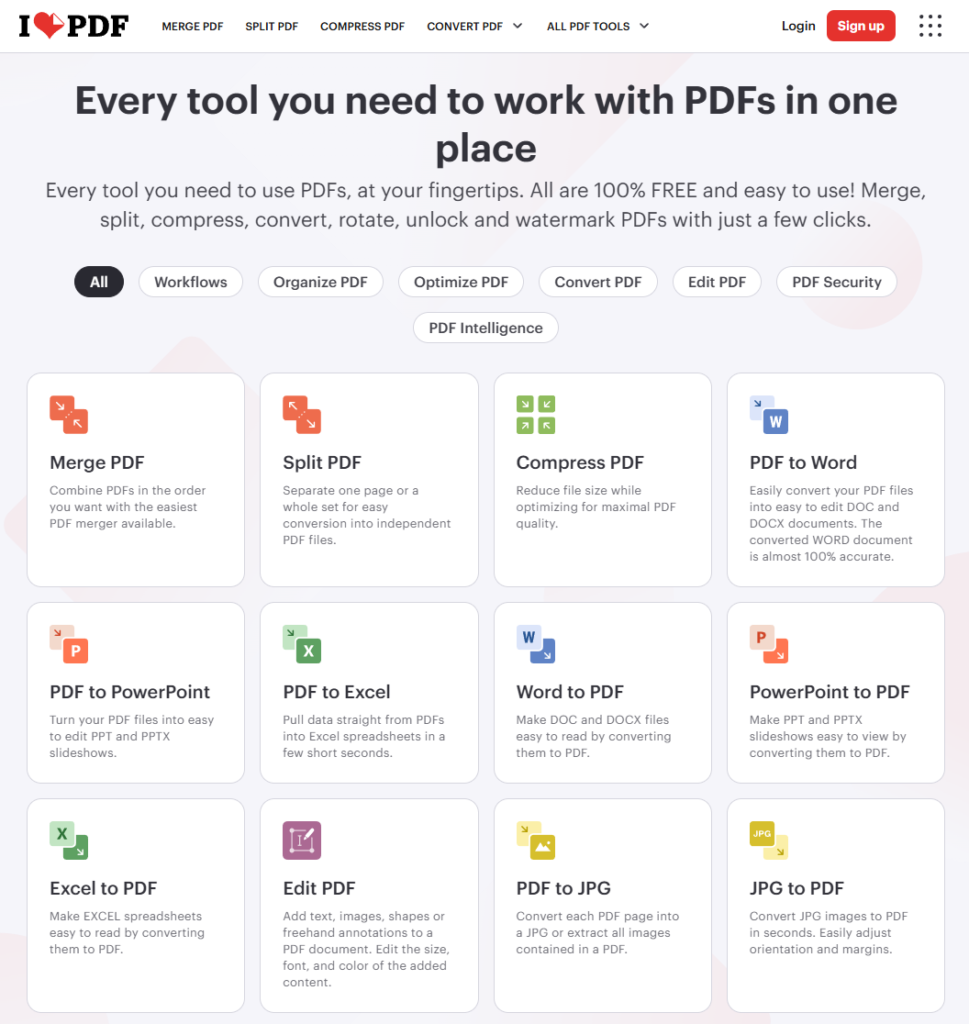
Step-by-step guide to merging PDFs with ILovePDF:
- Visit ilovepdf.com and click Merge PDF.
- Upload your PDF files by clicking Select PDF files or dragging them into the browser window.
- Drag and drop to reorder the files if needed.
- Click Merge PDF to process the documents.
- Download the merged file to your Mac.
Advantages: It’s free, requires no software installation, and is accessible from any browser on any device. The interface is intuitive, and the merge process takes only a few seconds.
Privacy note: ILovePDF uses secure HTTPS connections and is ISO 27001 certified, but uploading sensitive documents to any online platform carries inherent risk. For confidential files—legal documents, financial records, medical data—stick to offline methods like Preview or Finder.
Method 4: How to Merge PDF Online Using Other Free Tools
ILovePDF isn’t the only online option. Several other platforms offer free PDF merging with slightly different features and limitations.
Tool | Free File Size Limit | Key Features | Ease of Use |
|---|---|---|---|
Up to 2 tasks/hour free | Merge, compress, convert, e-sign | Very easy | |
No stated limit (basic) | Simple merge only | Very easy | |
Limited free usage | Merge, convert, edit | Easy |
All three are platform-independent, meaning they work just as well on a Mac as on Windows or Linux. They’re ideal for one-off tasks when you don’t want to install anything.
A word on file security: When merging PDFs online, your files are uploaded to a third-party server. Most reputable tools encrypt uploads and delete files after a short window (typically one hour), but always check the platform’s privacy policy before uploading sensitive materials.
Method 5: How to Combine PDF Files Without Acrobat Using Third-Party Mac Apps
Adobe Acrobat is the industry standard for PDF management, but at roughly $239 per year, it’s hard to justify for simple merging tasks. The good news is that Mac users have several capable third-party alternatives—some free, some affordable—available directly from the Mac App Store.
PDF Expert is one of the most well-rounded options. It supports merging, annotating, editing text, filling forms, and signing documents. It’s a polished app with a clean interface, and while the full feature set requires a paid plan, basic merging can often be done in a free trial.
PDF Squeezer takes a slightly different angle. Its primary focus is compression, but it works well alongside other tools as part of a PDF workflow—especially useful if your merged file turns out larger than expected.
These apps are particularly useful for users who work with PDFs regularly and want a dedicated Mac application rather than opening a browser every time. They offer more control than Preview, a more native experience than web tools, and cost a fraction of Acrobat’s subscription price.
How to Combine PDF Files into One: Tips for Best Results
Regardless of which method you choose, a few simple habits will help ensure your merged document comes out clean and professional.
Check page order before saving. Once a PDF is merged and saved, reordering pages requires going back through the process. Take a moment to preview the thumbnail order before exporting.
Compress the merged file if it’s too large. Merging multiple PDFs, particularly those with high-resolution images, can result in a large file. Tools like ILovePDF, Smallpdf, or PDF Squeezer can reduce file size without significantly impacting quality.
Use consistent formatting across documents. Merging PDFs with different page sizes (e.g., A4 and Letter) or orientations can create an uneven final document. If possible, standardize page dimensions before combining.
Troubleshooting common issues:
- Blurry images after merging: This typically happens when a tool compresses the file automatically during export. Use Preview’s “Export as PDF” option rather than “Print to PDF” to preserve image quality.
- Missing pages: If pages disappear after merging in Preview, try closing and reopening the file, or use an alternative method like ILovePDF.
- File won’t open after merging: This may indicate a corrupted source file. ILovePDF includes a Repair PDF tool that can often recover damaged documents before you attempt to merge them.
Frequently Asked Questions
How do I merge multiple PDFs into one PDF on a Mac for free?
The easiest free method is to use Preview, which comes pre-installed on every Mac. Open the first PDF, enable Thumbnail view, drag in the remaining PDFs, and export the combined file via File > Export as PDF. Finder’s Quick Actions feature is another free, built-in option.
What is ILovePDF used for?
ILovePDF is a free online platform for working with PDF files. It supports merging, splitting, compressing, converting, rotating, watermarking, and protecting PDFs, among other functions. It also converts between PDF and formats like Word, Excel, PowerPoint, and JPG.
Can I combine PDF files on a Mac without Adobe Acrobat?
Yes. Mac has several built-in tools for combining PDFs—Preview and Finder Quick Actions—that work without Acrobat. Free online platforms like ILovePDF and Smallpdf are also solid alternatives, as are third-party Mac apps like PDF Expert.
Is it safe to merge PDFs using online tools?
Most reputable platforms use encrypted connections and automatically delete uploaded files after a short period. That said, avoid uploading sensitive or confidential documents to online tools. For private files, use an offline method like Preview or a locally installed app.
Why is my merged PDF file so large?
Merging multiple PDFs—especially those containing high-resolution images—can significantly increase file size. Use a PDF compression tool after merging to reduce the size without major quality loss. ILovePDF’s Compress PDF feature is a quick, free option.
Merge Smarter, Not Harder
Combining PDFs on a Mac doesn’t have to be complicated, and it certainly doesn’t require an expensive subscription. Five solid methods are available to you right now: Preview for a quick built-in solution, Finder Quick Actions for instant merging, ILovePDF for a feature-rich browser-based experience, alternative online tools like Smallpdf and Adobe’s free web tool, and third-party apps like PDF Expert for users who want a dedicated PDF workflow.
The right choice depends on how often you merge PDFs, how much control you need over page order and formatting, and whether you’re working with sensitive documents. For occasional use, Preview or Finder will handle most situations. For more frequent tasks, a dedicated tool like ILovePDF or PDF Expert is worth the few minutes it takes to get started.
Have a preferred method that works well for you? Drop it in the comments below—we’d love to hear how other Mac users handle their PDF workflows. And if you found this guide useful, subscribe to our newsletter for more Mac productivity tips.